Viewer Navigation
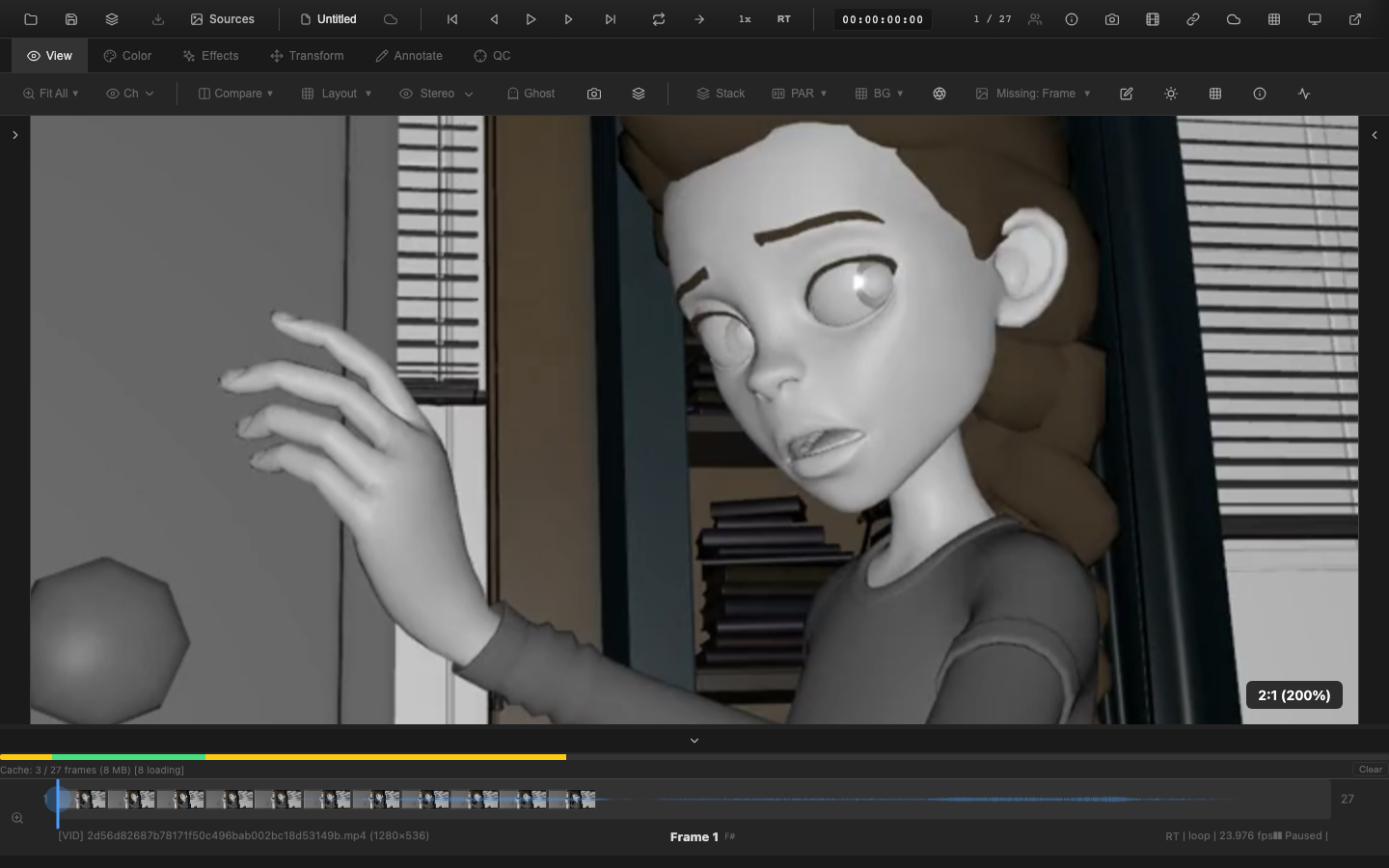
The viewer canvas supports pan, zoom, rotation, and flip operations for inspecting images at different scales and orientations. All transforms are non-destructive and can be reset at any time.
Pan
Click and drag on the canvas to pan the image when zoomed in. Panning is available when the pan tool (V) is selected in the Annotate tab, or whenever the zoom level exceeds "Fit."
The pan position persists across frame changes. Fitting the image to the window with F resets the pan to center.
Zoom
Mouse Wheel
Scroll the mouse wheel up to zoom in and down to zoom out. The zoom centers on the cursor position, keeping the area under the cursor stationary.
Pinch Gesture
On trackpads and touch devices, use a two-finger pinch gesture to zoom in and out.
Keyboard Shortcuts
| Key | Action |
|---|---|
F | Fit image to window |
= | Zoom in |
- | Zoom out |
Shift+= | Fine zoom in |
Shift+- | Fine zoom out |
0 | Zoom to 50% |
Zoom Presets
The Zoom dropdown in the View tab toolbar offers preset levels:
| Preset | Zoom Level |
|---|---|
| Fit | Scales to fill window while preserving aspect ratio |
| 25% | Quarter size |
| 50% | Half size |
| 100% | Pixel-for-pixel (1:1) |
| 200% | Double size |
| 400% | Four times size |
At 100% zoom, each pixel in the source image maps to exactly one pixel on the display (accounting for devicePixelRatio on Hi-DPI screens).
Smooth Zoom Animation
Zoom transitions use an ease-out cubic animation over 200 milliseconds, providing a smooth visual transition rather than an abrupt jump.
Rotate
Rotation operates in 90-degree increments:
| Key | Action |
|---|---|
Shift+R | Rotate 90 degrees counter-clockwise |
Alt+R | Rotate 90 degrees clockwise |
Rotation cycles through 0, 90, 180, and 270 degrees. The rotation state is stored as part of the Transform2D structure and persists across frame changes.
The Transform tab toolbar provides rotate left and rotate right buttons for the same operations.
Flip
| Key | Action |
|---|---|
Alt+H | Flip horizontal (mirror) |
Shift+V | Flip vertical |
Flip buttons in the Transform tab toolbar show an accent color when active. Applying the same flip twice returns the image to its original orientation.
Rotation and flip transforms combine correctly -- applying both a rotation and a flip produces the expected geometric result.
Reset View
The Transform tab toolbar includes a Reset button that restores all transforms to their defaults:
- Rotation returns to 0 degrees
- Flip horizontal and vertical are cleared
- Scale returns to 1:1
- Translation returns to origin
Pressing F (Fit to window) resets the zoom and pan but does not affect rotation or flip.
Spherical (360) Projection
OpenRV Web supports equirectangular (lat/long) panoramic image viewing. When 360 content is detected (via metadata or 2:1 aspect ratio), the viewer maps the image onto the inside of a sphere, allowing interactive exploration.
| Action | Control |
|---|---|
| Look around | Click and drag on the canvas |
| Zoom (field of view) | Scroll wheel |
The spherical projection uses yaw/pitch rotation with configurable field of view. Detection is automatic for files with spherical metadata, or can be enabled manually using the 360 View button in the View tab toolbar.
Transform Rendering
Transforms are applied in the rendering pipeline in this order:
- Canvas translation to center
- Rotation (in radians)
- Flip (scale -1 on the appropriate axis)
- Image drawn at center offset
All transforms persist across frame changes and tab switches, so navigating through a sequence maintains the current view orientation.
Related Pages
- Quick Start -- basic navigation overview
- UI Overview -- full interface layout
- Channel Isolation -- combine with zoom for pixel-level inspection
- J/K/L Navigation -- playback speed and shuttle controls
- Transforms -- crop, lens distortion, and perspective correction
- Pixel Probe -- inspect pixel values at zoom (
Shift+I)