Frame Export
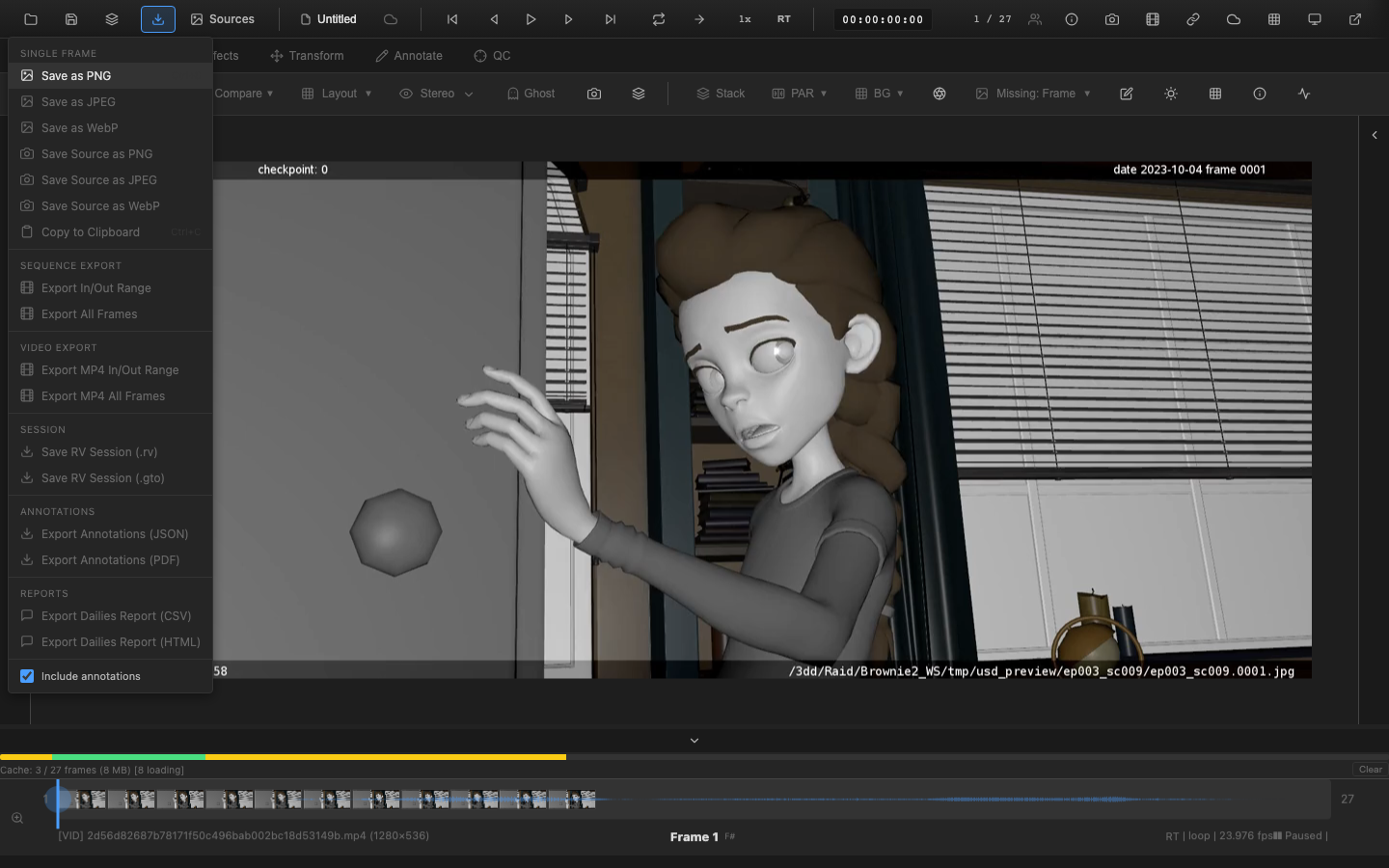
OpenRV Web exports individual frames or sequences of frames as image files. Exported frames include all applied color corrections, LUTs, and overlays as rendered in the viewer.
Single Frame Export
Press Ctrl+S to export the current frame. The Export dropdown in the header bar also provides access to frame export options.
Supported Formats
| Format | Extension | Notes |
|---|---|---|
| PNG | .png | Lossless, supports transparency |
| JPEG | .jpeg | Lossy compression, smaller files |
| WebP | .webp | Modern format, good compression |
Select the desired format from the export options before saving.
What Is Exported
The exported frame captures the rendered output as displayed in the viewer, including:
- All color corrections (exposure, contrast, saturation, etc.)
- LUT application
- Tone mapping
- Channel isolation (if active)
- Transform (rotation, flip)
- Crop
Annotations (pen strokes, shapes, text) are rendered on top of the image in the exported frame if they are visible at the time of export.
Sequence Export
Export multiple frames as a numbered image sequence. The export process renders each frame through the color pipeline and saves it with a sequential number in the filename. A progress indicator displays the export status.
Copy to Clipboard
Press Ctrl+C to copy the current frame to the system clipboard. The clipboard receives the rendered frame as a bitmap image, ready to paste into other applications (image editors, presentation software, email clients).
Clipboard access requires a secure context (HTTPS) and user permission. If the browser denies clipboard access, an error message appears.
VFX Use Case
Frame export is commonly used to capture reference frames for client approval. When a supervisor approves a specific frame during review, export it with Ctrl+S and include it in the delivery package or attach it to the ShotGrid note as a visual reference. The export captures the graded, tone-mapped result as displayed -- ideal for communicating the intended final look.
WARNING
Exported frames are display-referred (post-tone-mapping, post-display-transform) in PNG/JPEG/WebP. They are not suitable as source material for further compositing. For scene-referred frame capture, use the original EXR or DPX source files from the render farm.
Export Workflow
- Navigate to the desired frame
- Apply any color corrections or overlays that should be included
- Press
Ctrl+Sfor file export orCtrl+Cfor clipboard - For file export, select the format and save location in the browser download dialog
Scripting API
// Frame export is triggered via keyboard shortcut
// Ctrl+S triggers export.quickExport
// Ctrl+C triggers export.copyFrame
Related Pages
- Video Export -- export as encoded video
- Slate and Frameburn -- add metadata overlays to exports
- Sessions -- save the full session state