EDL and OTIO
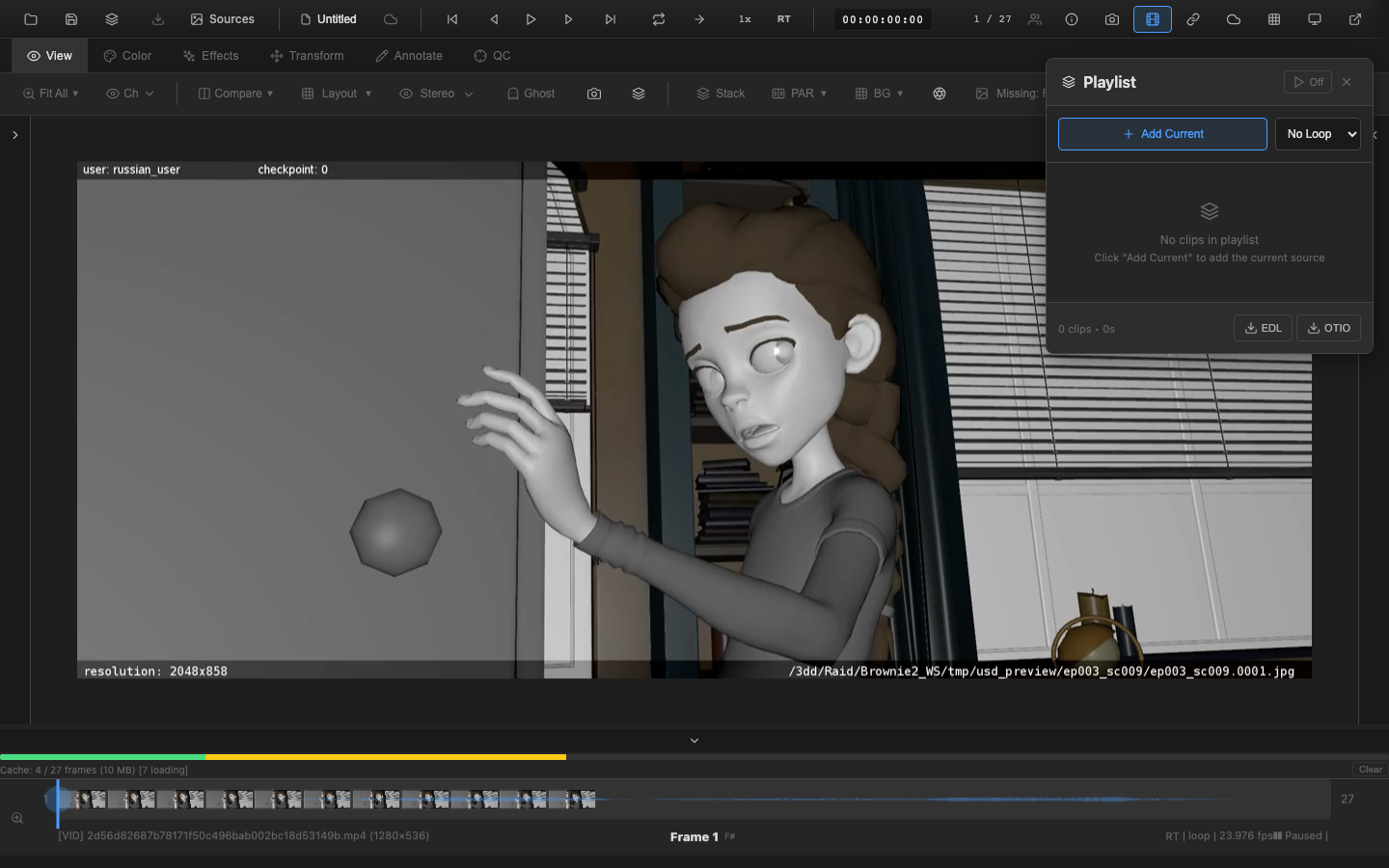
OpenRV Web supports exporting Edit Decision Lists (EDL) in CMX 3600 format and importing OpenTimelineIO (OTIO) editorial timelines. These features bridge OpenRV Web with editorial and conform workflows.
EDL Export (CMX 3600)
Export the current playlist as an EDL file. Two paths are available:
- Playlist panel -- click the EDL export button in the panel footer
- Export menu -- select "Export EDL (CMX 3600)" from the top-bar Export dropdown (the export uses the same playlist data)
Format
The exported EDL uses the CMX 3600 standard format:
TITLE: OpenRV Playlist
FCM: NON-DROP FRAME

001  SourceA  V     C        00:00:00:01 00:00:04:01 00:00:00:01 00:00:04:01
* FROM CLIP NAME: SourceA

002  SourceB  V     C        00:00:00:01 00:00:02:01 00:00:04:01 00:00:06:01
* FROM CLIP NAME: SourceB
Timecode
Timecodes use the SMPTE format (HH:MM:SS:FF) at the session frame rate (default 24 fps). Each entry includes:
- Source in/out -- the frame range within the source clip
- Record in/out -- the position in the output timeline
Drop Frame Support
The EDL writer supports drop-frame timecode for frame rates that require it (29.97 fps). Non-drop frame is the default.
How to Export
- Open the Playlist panel (
Shift+Alt+P) - Add clips to the playlist using "Add Current"
- Configure in/out points for each clip
- Click the EDL export button (download icon) in the panel footer
- The EDL file downloads to the browser
OTIO Import
OpenTimelineIO (OTIO) files can be imported to reconstruct editorial timelines within OpenRV Web.
Supported OTIO Elements
| Element | Support |
|---|---|
| Clips | Imported with source references and timeline positions |
| Gaps | Preserved as empty regions; gap spacing is reflected in playlist globalStartFrame values so that clips are not contiguous when gaps exist |
| Transitions | Parsed and stored as metadata (lastOTIOImportResult.transitions); wired to TransitionManager when available (visual crossfade rendering depends on the transition manager) |
| Markers | Imported from timeline, track, and clip levels; colors mapped to hex |
| Metadata | Preserved on each playlist clip (PlaylistClip.metadata) and on the import result (lastOTIOImportResult.metadata) |
Import Process
- Load an OTIO file using any of these methods:
- File picker -- click the Open button in the top bar and select an
.otiofile - Drag and drop -- drop an
.otiofile onto the viewer - Playlist panel -- click the Import button in the panel footer and select an
.otiofile
- File picker -- click the Open button in the top bar and select an
- OpenRV Web parses the timeline structure
- Clips are mapped to available media sources
Conform / Re-link Panel
When OTIO clips reference media files that are not yet loaded, the Conform/Re-link panel appears (toggle with the link icon in the header bar). This panel allows:
- Viewing unresolved media references -- each clip shows its original filename, reason for failure, and suggested matches from already-loaded sources
- Per-clip browse -- click "Browse..." on any clip row to open a file picker, select a replacement file, and the clip is re-linked automatically
- Batch re-link by folder -- click "Re-link by Folder..." in the toolbar to select multiple files at once; unresolved clips are fuzzy-matched against the selected files by filename (score >= 80) and re-linked in bulk
- Auto Re-link -- click "Auto Re-link" to match unresolved clips against already-loaded sources by filename similarity
- Suggestions dropdown -- when loaded sources have similar names, a dropdown lets you pick a match manually
Once media is re-linked, the timeline plays back with the correct content at the specified frame ranges.
Pipeline Note
EDL export enables the editorial roundtrip: assemble a review playlist in OpenRV Web, export a CMX 3600 EDL, and import it into Avid, Premiere, or Resolve to conform the edit against the original media. OTIO import works in the opposite direction -- export a timeline from editorial and load it into OpenRV Web to review the cut with the VFX team. This closes the loop between editorial and VFX review.
VFX Use Case
When using OTIO import for conform, the Re-link panel is critical. VFX media often lives on different storage paths than editorial media. Use the "Browse..." button on individual clips or "Re-link by Folder..." to select multiple replacement files at once. The fuzzy filename matching will automatically pair unresolved clips with the best-matching files, so you can quickly re-link shots to your local VFX renders and review the edit in context with the latest comp versions.
Dailies Reports
The Report Exporter generates review session reports in CSV and HTML formats. Reports include:
| Field | Description |
|---|---|
| Shot name | Clip or source identifier |
| Status | Per-source review status (pending, approved, needs-work, etc.) |
| Notes | Review notes and comments |
| Version info | Version number and history |
| Frame range | In/out points for each clip |
| Timecodes | SMPTE timecodes for each clip |
Exporting Reports
Reports are available from the Export menu:
- CSV -- tabular data suitable for import into spreadsheets or production tracking tools
- HTML -- formatted report suitable for printing or sharing via email
Playlist Integration
EDL export and OTIO import are tightly integrated with the Playlist Manager. The playlist stores clips with source indices, in/out points, and global timeline positions. The EDL writer serializes this data, and the OTIO importer creates playlist entries from the imported timeline.
Related Pages
- Frame Export -- export individual frames
- Video Export -- encode video files
- Sessions -- save and load full project state