A/B Compare and Source Switching
OpenRV Web supports loading two media sources and switching between them instantly for comparison. This workflow is fundamental to VFX review, where comparing different versions or before/after states is a daily task.
Loading Multiple Sources
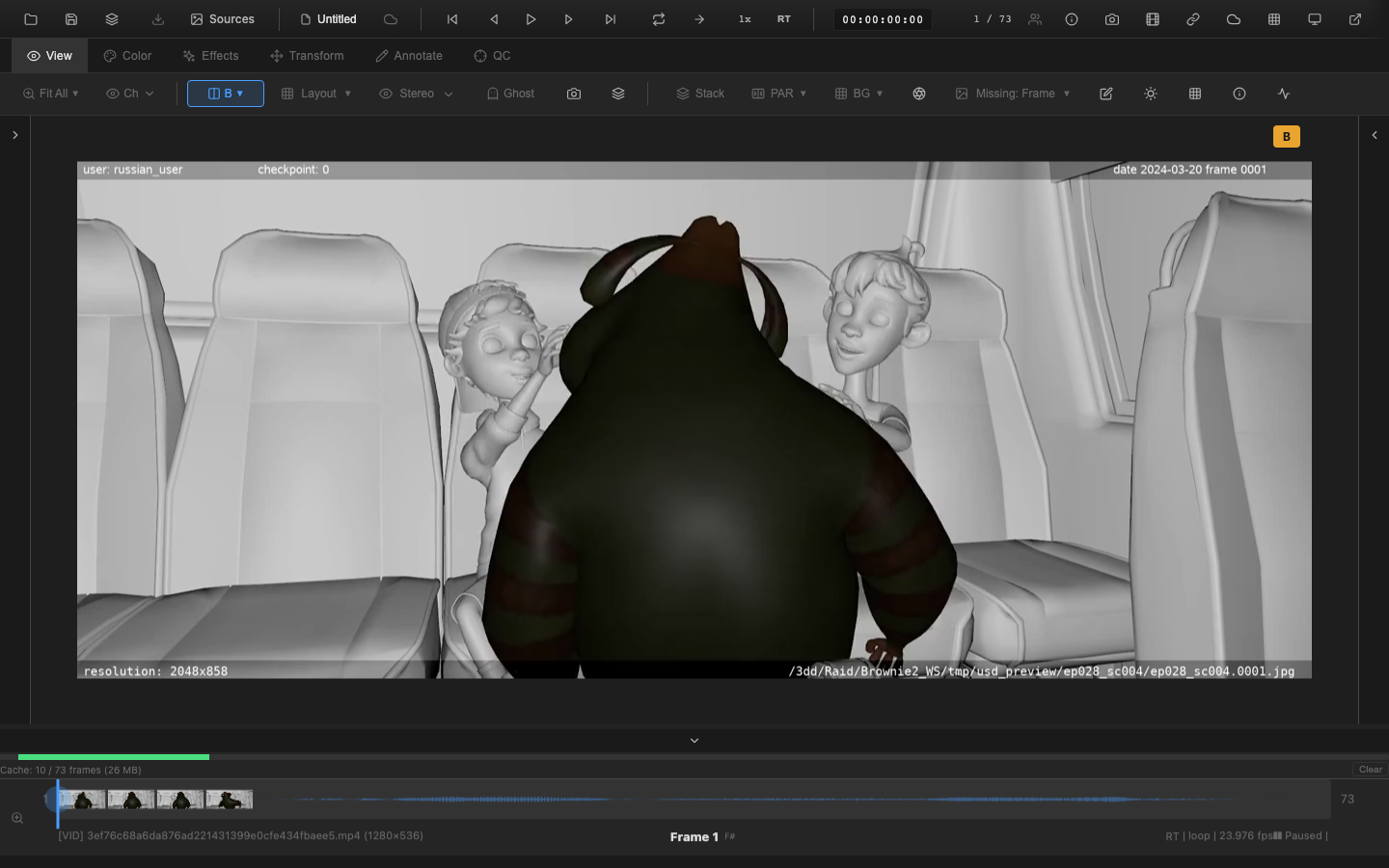
When a second file is loaded (via drag and drop or the file picker) after the first, it automatically assigns as source B. The first file remains as source A. The A/B controls in the Compare dropdown (View tab) become active.
If only one source is loaded, the B button and toggle button are disabled with reduced opacity.
Toggling A/B
Press the backtick key (`) or tilde (~) to toggle between source A and source B. Each press switches the viewer to display the other source.
The A and B buttons in the Compare dropdown allow direct selection of either source. Clicking "A" switches to source A; clicking "B" switches to source B.
The toggle button (swap icon) in the dropdown also switches between sources.
A/B Badge
A small badge appears in the viewer corner showing "A" or "B" to indicate which source is currently displayed. The badge is hidden during split screen mode, where separate A/B labels serve the same purpose.
Source Availability
The A/B controls respond to the number of loaded sources:
| Sources Loaded | A Button | B Button | Toggle | Badge |
|---|---|---|---|---|
| 0 | Disabled | Disabled | Disabled | Hidden |
| 1 | Highlighted | Disabled | Disabled | Hidden |
| 2+ | Active | Active | Active | Visible |
VFX Use Case
A/B switching is the fastest way to compare shot versions during dailies. Load the previous version as source A and the latest version as source B, then toggle with backtick (`) to instantly evaluate changes. This is particularly effective for spotting comp fixes, paint cleanup, and animation timing adjustments that are difficult to assess without direct comparison.
Pipeline Note
When comparing versions, ensure both sources have the same color pipeline applied (same LUT, same OCIO config, same display profile). A version comparison with mismatched color settings will produce misleading results. Use the wipe mode or difference matte for more targeted comparisons.
Compare Dropdown
The Compare dropdown in the View tab consolidates all comparison tools in one location:
- Wipe Mode section -- wipe and split screen options
- A/B Compare section -- A, B, and toggle buttons
- Difference Matte section -- difference visualization controls
- Blend Modes section -- onion skin, flicker, and blend
Each section is visually separated with a header label.
Keyboard Shortcuts
| Key | Action |
|---|---|
` (backtick) | Toggle between A/B sources |
~ (tilde) | Toggle between A/B sources |
Shift+W | Cycle wipe mode |
Shift+Alt+S | Toggle split screen |
Shift+D | Toggle difference matte |
Scripting API
// Source switching is integrated with the view API
window.openrv.view.setChannel('rgb');  // Channel control
Related Pages
- Wipe Mode -- compare original vs. graded on the same source
- Split Screen -- side-by-side A/B comparison
- Difference Matte -- pixel-level difference visualization
- Blend Modes -- onion skin, flicker, and blend comparison