Split Screen
Split screen displays sources A and B simultaneously in the viewer, divided by a draggable divider. Each side shows a different source, making it straightforward to compare two versions of the same shot or two different shots side by side.
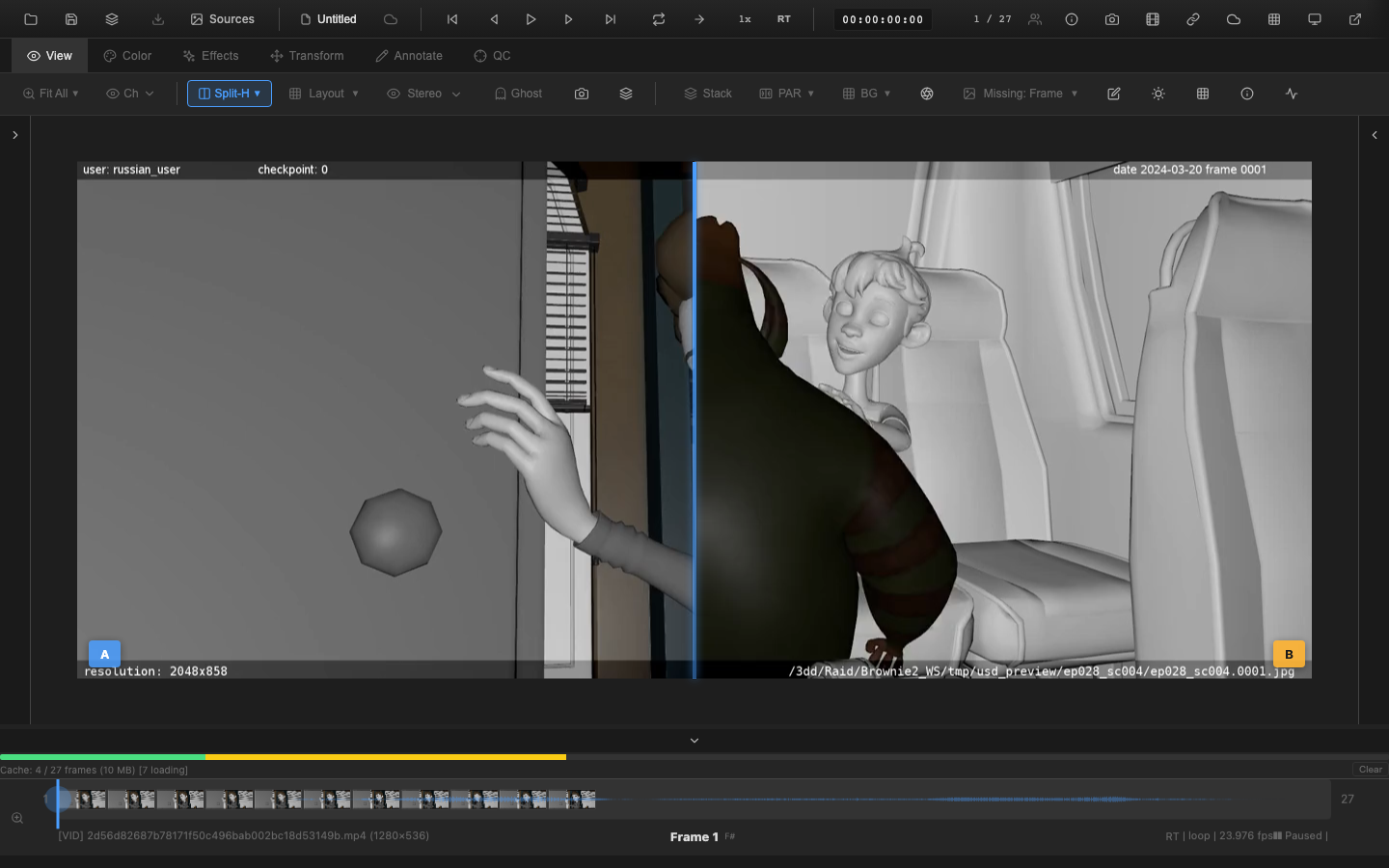
Enabling Split Screen
Press Shift+Alt+S to toggle split screen. The mode cycles through:
- Off -- normal single-source display
- Horizontal split -- A on the left, B on the right
- Vertical split -- A on the top, B on the bottom
Split screen can also be selected from the Wipe Mode section of the Compare dropdown.
Draggable Divider
The divider between the two sources can be dragged to adjust the split position. The position is clamped between 5% and 95% to ensure both sources remain visible. The default position is 50% (equal halves).
The divider is rendered as an accent-colored line with distinct A/B labels on each side:
- A label -- blue, on the left or top
- B label -- orange, on the right or bottom
Synced Playback
During split screen mode, both sources advance together frame by frame. Play, pause, seek, and step operations apply to both sources simultaneously, keeping them in sync for accurate comparison.
A/B Indicator Behavior
The A/B badge in the viewer corner is hidden during split screen mode. The A and B labels on the divider serve the same identification purpose.
Requirements
Split screen requires two loaded sources. If only one source is loaded, enabling split screen has no visual effect.
Keyboard Reference
| Key | Action |
|---|---|
Shift+Alt+S | Cycle split screen mode (off, horizontal, vertical) |
Related Pages
- A/B Switching -- toggle between sources without side-by-side display
- Wipe Mode -- compare original vs. graded on a single source
- Difference Matte -- pixel-level difference analysis
- Shape Tools -- annotate areas of interest during comparison