Blend Modes
Blend modes provide additional methods for comparing sources A and B by combining them in the viewer. Three blend modes are available: onion skin, flicker, and blend.
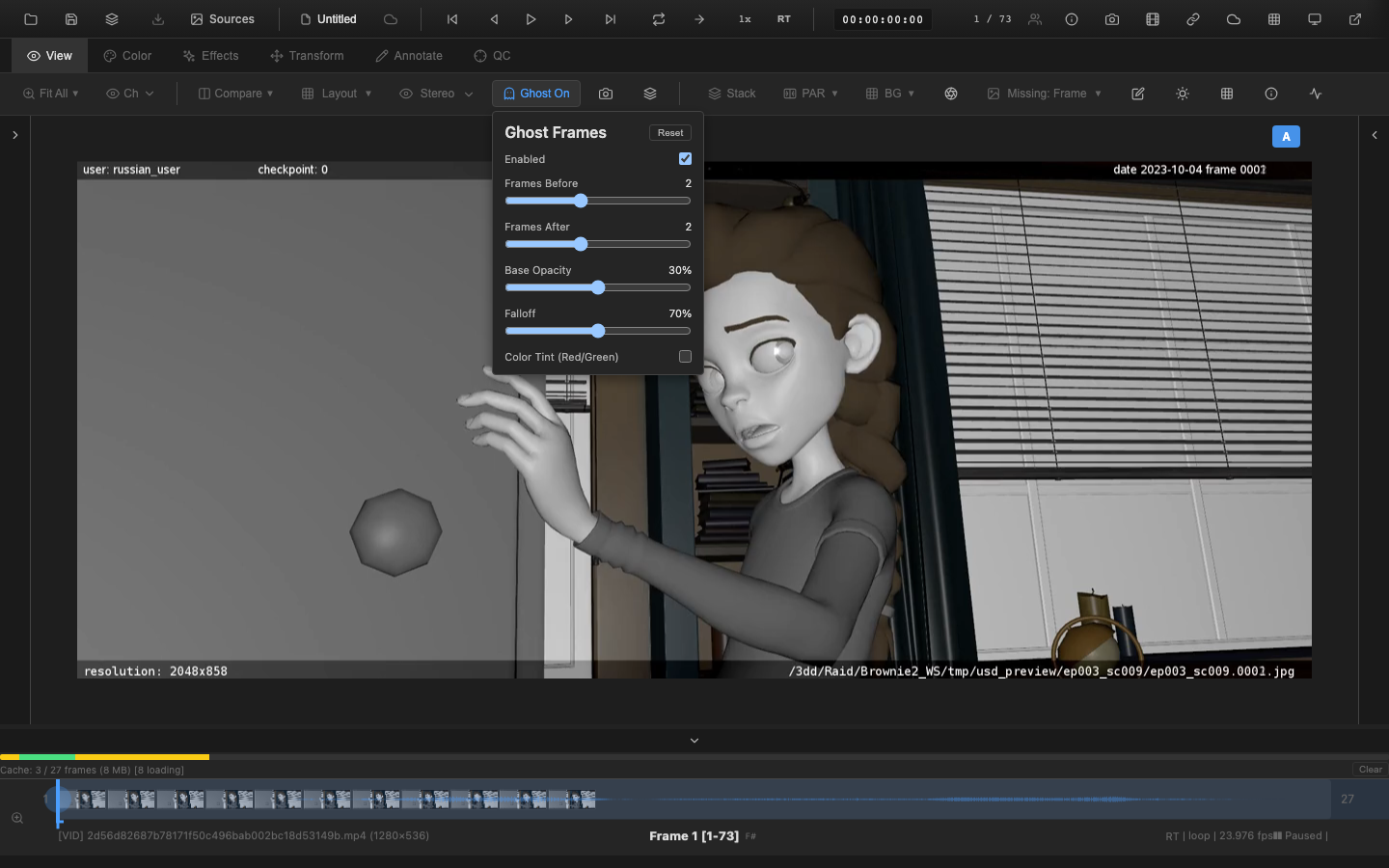
Onion Skin
Onion skin overlays source B on top of source A with adjustable opacity. At 0% opacity, only source A is visible. At 100%, only source B is visible. At 50%, both sources are equally blended.
Controls
- Toggle: Click the "Onion Skin" button in the Blend Modes section of the Compare dropdown
- Opacity slider: Drag to adjust the blend (0--100%)
Onion skin is useful for aligning elements between two versions or checking that a composite matches a reference.
Flicker
Flicker mode alternates the display between source A and source B at a configurable rate. The rapid switching makes differences between the two sources immediately apparent -- changed areas appear to flicker while unchanged areas remain stable.
Controls
- Toggle: Click the "Flicker" button in the Compare dropdown
- Rate slider: Drag to set the alternation rate (1--30 Hz)
A rate of 2--5 Hz is typically effective for spotting changes. Higher rates produce a more continuous blended appearance.
The flicker implementation uses setInterval to alternate a frame flag (0 or 1), triggering re-renders at the configured rate. The interval is cleaned up when the mode changes or the component disposes.
Blend
Blend mode mixes sources A and B with an adjustable ratio. At 0%, the viewer shows source A exclusively. At 100%, it shows source B. At 50%, each source contributes equally.
Controls
- Toggle: Click the "Blend" button in the Compare dropdown
- A/B ratio slider: Drag to adjust the mix (0--100%)
Blend mode is similar to onion skin but provides a linear mix rather than an alpha overlay, which can produce different visual results depending on the source content.
Mutual Exclusivity
Only one blend mode can be active at a time. Enabling onion skin disables flicker and blend. Enabling any blend mode also disables wipe mode, split screen, and difference matte.
This mutual exclusivity prevents conflicting visualizations. The Compare dropdown clearly indicates which mode is active with accent-color highlighting.
Layer Stack Blend Modes
In addition to the three comparison blend modes above, the multi-layer stack system (see Advanced Compare) supports the following compositing blend modes for combining multiple sources:
Per-Layer Modes
These modes are selectable independently on each layer and describe how that layer is combined with the layers beneath it.
| Mode | Description |
|---|---|
| Normal | Standard Porter-Duff alpha over compositing |
| Add | Additive (linear dodge) -- brightens the image |
| Minus | Subtractive -- darkens the image |
| Multiply | Multiply -- darkens by multiplying pixel values |
| Screen | Screen -- lightens, inverse of multiply |
| Overlay | Overlay -- combines multiply and screen based on luminance |
| Difference | Absolute difference between layers |
| Exclusion | Similar to difference but lower contrast |
| Dissolve | Per-pixel noise selection between layers (matches OpenRV InlineDissolve2.glsl) |
Stack-Level Modes
Some compositing modes describe a property of the entire stack rather than a single layer. They must be set uniformly on every layer of the stack.
| Mode | Description |
|---|---|
| Topmost | Display only the top-most visible layer; all layers underneath are ignored (matches OpenRV IPImage::Replace with topmostOnly = true) |
Uniformity contract for Topmost. When the stack composite type is topmost, every layer in the stack carries blendMode = 'topmost' -- the value is propagated from the stack-level setter (StackGroupNode.getCompositeType()), never selected per layer. Mixing topmost with other modes on individual layers is not a supported configuration.
The contract is enforced structurally rather than by a runtime check:
- The per-layer blend-mode dropdown (
StackControl) filters'topmost'out of the user-visible options, so'topmost'cannot be selected for an individual layer through the UI. It is only ever produced by the stack-level setterStackGroupNode.getCompositeType(), which propagates the same value to every layer. - The compositor takes its fast path based on the stack's composite type via
StackGroupNode.compositeLayers, which short-circuits to a single-layer (top) draw whengetCompositeType() === 'topmost'. This makescompositeMultipleLayersunreachable for the'topmost'case in the node-tree path. compositeMultipleLayers(insrc/composite/BlendModes.ts) is marked@internaland is reserved for tests / consolidation work; production stack rendering does not call it for'topmost'.
Alpha Compositing
Both straight alpha and premultiplied alpha compositing are supported. Premultiplied alpha matches OpenRV's desktop compositing pipeline and is used automatically when loading RV session files.
Practical Tips
- Flicker at 4 Hz is a common choice for change detection -- slow enough to see each frame but fast enough to make differences pop
- Onion skin at 50% provides a balanced overlay for registration checks
- Blend ratio sweep -- drag the blend slider back and forth to smoothly reveal and hide changes
Related Pages
- A/B Switching -- load two sources for comparison
- Difference Matte -- pixel-level difference visualization
- Split Screen -- side-by-side display