Advanced Comparison Features
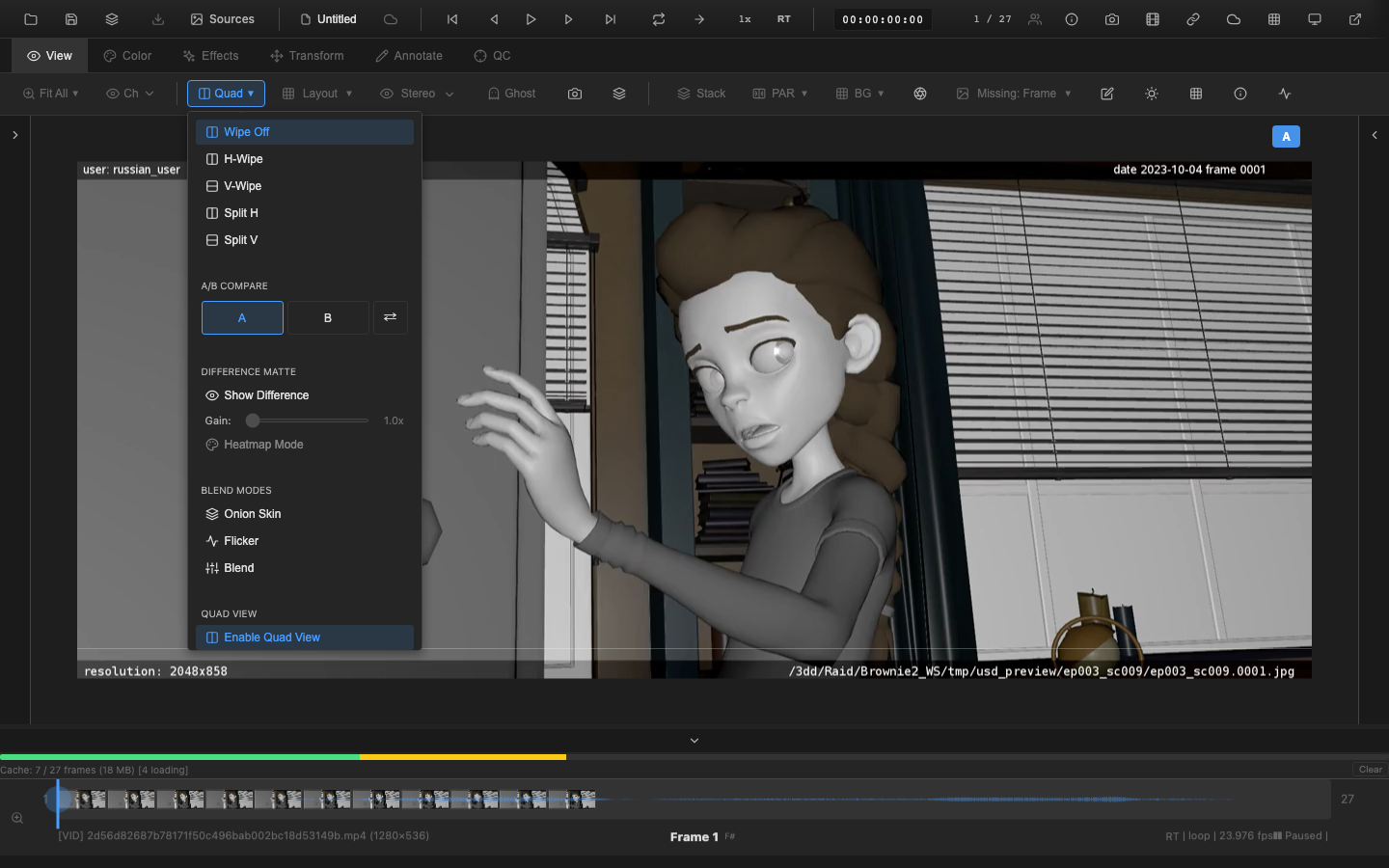
Beyond the standard A/B comparison tools, OpenRV Web provides reference image management, matte overlay, multi-layer stack capabilities, and a preview of quad view for complex review scenarios.
Quad View (Preview)
Status: Preview / Experimental. Quad View is not yet connected to the viewer rendering pipeline. The UI controls are available for early feedback, but enabling Quad View will not render a quad layout in the viewer. The information below describes the planned behavior.
Quad view will divide the viewer into four quadrants, each displaying a different source (A, B, C, D). This mode will be useful for comparing multiple versions or render passes simultaneously without switching between sources.
Each quadrant will operate independently, showing its assigned source at the current frame. All four quadrants will stay in sync during playback.
Reference Image Manager
The Reference Image Manager captures and stores a snapshot of the current frame as a reference image. This reference can then be compared against live footage using several view modes.
Toolbar Controls
The View tab toolbar exposes the following reference image controls:
- Capture (camera icon) -- captures the current viewer frame as the reference image and enables comparison. Keyboard shortcut:
Alt+Shift+R. - Toggle (layers icon) -- enables or disables reference comparison. Keyboard shortcut:
Ctrl+Shift+R. Right-click this button to open the full settings context menu. - Mode dropdown (labelled "Ref: ...") -- selects the active comparison view mode (see table below).
- Opacity slider -- adjusts blend opacity (0--100%). Shown when the mode is Overlay or Toggle.
- Wipe slider -- adjusts the split/wipe position (0--100%). Shown when the mode is Split Horizontal or Split Vertical.
View Modes
| Mode | Description |
|---|---|
| Split H | Reference on left, live on right, with adjustable wipe position |
| Split V | Reference on top, live on bottom, with adjustable wipe position |
| Overlay | Reference overlaid on live with adjustable opacity |
| Side by Side | Reference and live displayed in adjacent panels |
| Toggle | Press to switch between reference and live, with adjustable opacity |
The reference image comparison is independent of the A/B source system. It allows comparing the current graded frame against a previously captured state -- useful for evaluating whether color corrections improve on a starting point.
Matte Overlay
The matte overlay adds a letterbox or pillarbox mask to the viewer with configurable aspect ratio and opacity. Common uses include:
- Aspect ratio preview -- visualize how the image appears at delivery aspect ratio (e.g., 2.39:1 for widescreen cinema)
- Safe area reference -- mask out areas outside the intended crop
- Client presentation -- show final framing during review sessions
Accessing the Matte Overlay
The matte overlay toggle button (crop icon) is located in the View tab toolbar. Click the button to enable or disable the overlay. Right-click the button to open the settings menu.
Configuration
The settings menu provides the following controls:
- Aspect ratio presets -- quick-select buttons for common ratios: 2.39:1, 1.85:1, 16:9, 4:3, 1:1
- Custom aspect ratio -- numeric input for any desired ratio (0.1--10)
- Opacity -- slider to adjust the darkness of the matte bars (0--100%)
- Center X / Center Y -- sliders to offset the matte center if the composition is not centered (-100% to +100%)
Matte settings persist across frame changes and are included in session state.
Multi-Layer Stack
The multi-layer stack allows combining multiple sources with blend modes and per-layer opacity and visibility controls. This is useful for compositing review where layers need to be toggled on and off.
Each layer in the stack supports:
- Visibility toggle -- show or hide the layer
- Opacity -- adjust the layer contribution (0--100%)
- Blend mode -- select how the layer combines with layers below
The stack is ordered from bottom (background) to top (foreground), following standard compositing conventions.
A small number of compositing options -- notably topmost -- are stack-level rather than per-layer: choosing them applies the same mode uniformly to every layer in the stack. See Layer Stack Blend Modes for the full list and the stack-level uniformity contract.
Comparison Annotations
Annotations can be drawn during A/B compare mode. Annotations are keyed to the A/B slot assignment, not to the underlying media source. This means that swapping which source is assigned to slot A vs. slot B will also swap which annotations are visible in each slot. If you reassign a different source to slot A, the annotations previously drawn in slot A remain attached to that slot and will appear over the new source.
Practical Workflows
Dailies Review
- Load the latest render as source A
- Load the previous approved version as source B
- Use split screen to compare side by side
- Switch to difference matte to verify changes are limited to intended areas
- Add markers at frames that need attention
Color Grading Review
- Load the ungraded source
- Apply color corrections
- Use wipe mode to compare original vs. graded
- Capture a reference image before making further adjustments
- Use the reference overlay to compare the current grade against the saved state
Multi-Version Comparison
- Load up to four versions of a shot
- Enable quad view to see all versions simultaneously (planned -- quad view is currently a preview feature and does not yet render in the viewer)
- Play through the shot to compare motion and timing
- Switch to A/B toggle for detailed frame-by-frame comparison
Related Pages
- A/B Switching -- basic two-source comparison
- Wipe Mode -- original vs. graded comparison
- Split Screen -- side-by-side display
- Difference Matte -- pixel difference visualization
- Blend Modes -- onion skin, flicker, and blend