Pen and Eraser Tools
The pen and eraser tools enable freehand drawing directly on the viewer canvas. Annotations are stored per frame and rendered through the WebGL paint engine for high-performance display.
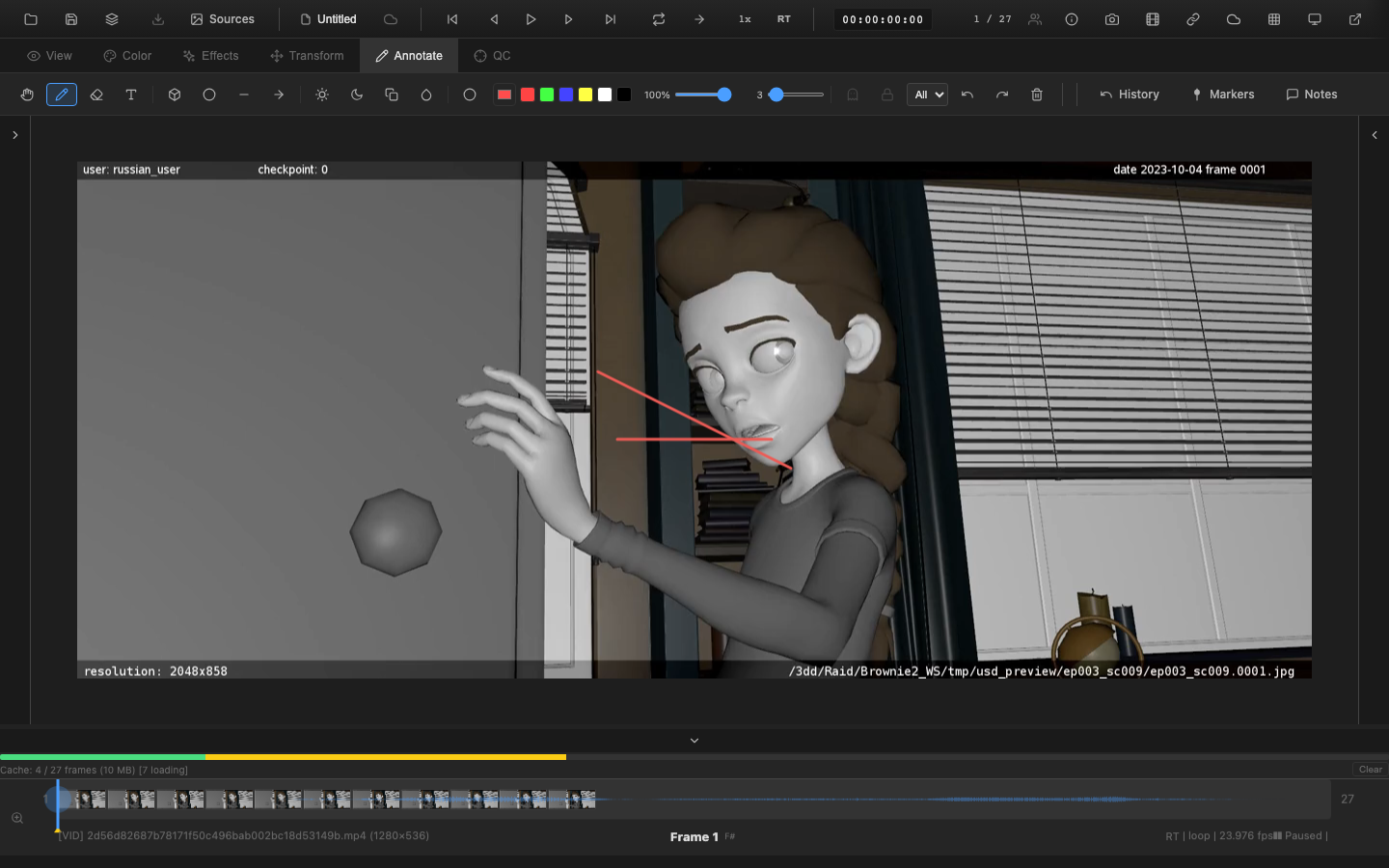
Activating the Annotation Tab
Press 5 to switch to the Annotate tab. The context toolbar displays all drawing tools, brush settings, and annotation controls.
Pen Tool
Press P to select the pen tool. Click and drag on the canvas to draw freehand strokes. Strokes render in real time as the cursor moves.
Brush Types
Press B to toggle between two brush types:
| Type | Description |
|---|---|
| Hard (Circle) | Solid edges with uniform opacity |
| Soft (Gaussian) | Feathered edges with gradual falloff |
Stroke Color
Select the stroke color using the color picker in the toolbar. A row of preset color swatches provides quick access to common colors. Click a preset to set it as the active color, or use the full color picker for custom colors.
Stroke Width
Adjust the stroke width using the width slider in the toolbar. Drag the slider to set the brush size. The width applies to all subsequent strokes until changed.
Pressure Sensitivity
On devices with pressure-sensitive input (such as graphics tablets), the pen tool responds to pressure, varying the stroke width based on how hard the stylus presses. This produces natural-looking strokes with thick and thin variation.
Eraser Tool
Press E to select the eraser tool. Click and drag to erase portions of existing strokes on the current frame. The eraser removes annotation data in the brushed area.
Undo and Redo
| Action | Shortcut |
|---|---|
| Undo | Ctrl+Z |
| Redo | Ctrl+Y |
Each stroke or eraser action is added to the undo stack. Undo removes the most recent action; redo restores it. The undo history supports multiple levels.
Clear Frame
The Clear button in the toolbar removes all annotations from the current frame. This is a destructive action -- use undo (Ctrl+Z) to recover if needed.
Annotation Storage
Annotations are stored per frame in the PaintEngine. Each frame can have its own independent set of strokes, text, and shapes. The timeline displays yellow triangle indicators below the track for frames that contain annotations.
Timeline Integration
When an annotation is added to a frame, a yellow triangle marker appears on the timeline at that frame's position. Navigate between annotated frames using:
| Key | Action |
|---|---|
, | Jump to previous annotated frame |
. | Jump to next annotated frame |
Pan Tool
Press V to switch to the pan tool. In this mode, clicking and dragging pans the image instead of drawing. This is useful for repositioning the view without accidentally adding strokes.
WebGL Rendering
Annotations are rendered through the WebGL paint renderer, ensuring smooth performance even with complex annotations. GPU acceleration keeps the annotation layer responsive during playback and interaction.
Related Pages
- Shape Tools -- rectangles, ellipses, lines, arrows
- Text Annotations -- add text labels
- Per-Frame Modes -- ghost and hold modes
- Exporting Annotations -- JSON and PDF export