Text Annotations
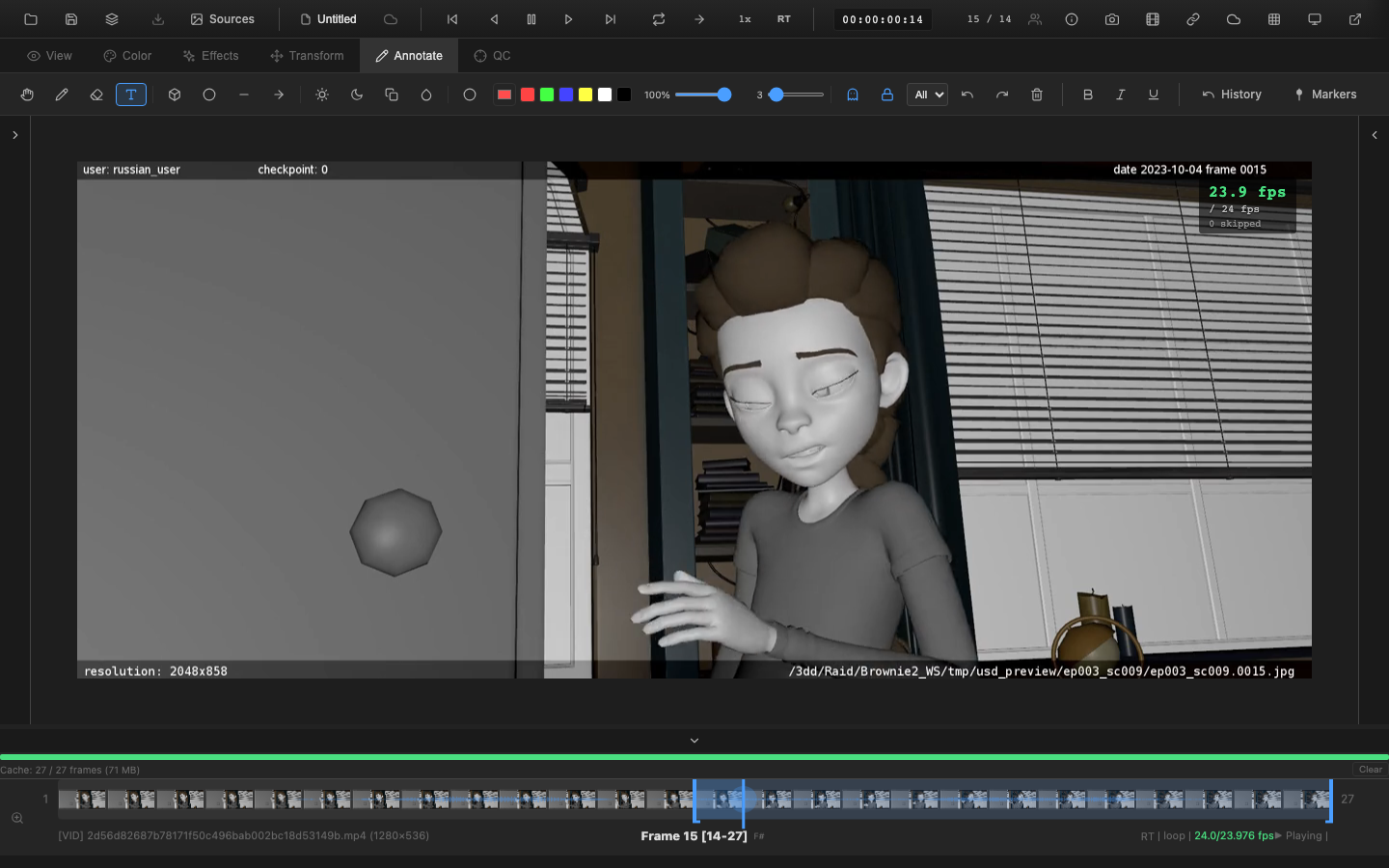
Text annotations add typed labels, notes, and callouts directly on the viewer canvas. They are useful for labeling specific areas, adding review comments, and providing context that freehand drawing cannot convey.
Using the Text Tool
Press T to select the text tool while in the Annotate tab (key 5). Click on the canvas at the desired position to place a text annotation. A text input field appears where text can be typed.
Formatting Options
Text annotations support several formatting options:
| Format | Description |
|---|---|
| Bold | Heavier font weight for emphasis |
| Italic | Slanted text for secondary information |
| Underline | Underlined text for highlighting |
Apply formatting before or during text entry using the formatting controls in the toolbar.
Background and Callouts
Text annotations can include a background color behind the text for improved readability. This is particularly useful when the text overlaps with complex or detailed image content.
Callout-style annotations combine a background panel with the text, creating a visually distinct label that stands out against any image.
Positioning
After placing a text annotation, it remains at the specified position on the canvas. The position is stored in image coordinates, so the text stays aligned with the image content even when panning or zooming.
Color
Text color follows the active stroke color selected in the toolbar. Choose from the preset colors or the full color picker before placing the text annotation.
Per-Frame Storage
Text annotations are stored per frame, just like pen strokes and shapes. Each frame can have its own set of text labels. Navigate between frames to see different annotations.
Undo and Redo
Adding a text annotation is a single undo step. Press Ctrl+Z to remove the most recently placed text. Press Ctrl+Y to restore it.
Related Pages
- Pen and Eraser -- freehand drawing
- Shape Tools -- geometric annotations
- Per-Frame Modes -- ghost and hold visibility
- Exporting Annotations -- export annotations as JSON or PDF
- Review Workflow -- using annotations in dailies and review sessions