Shape Tools
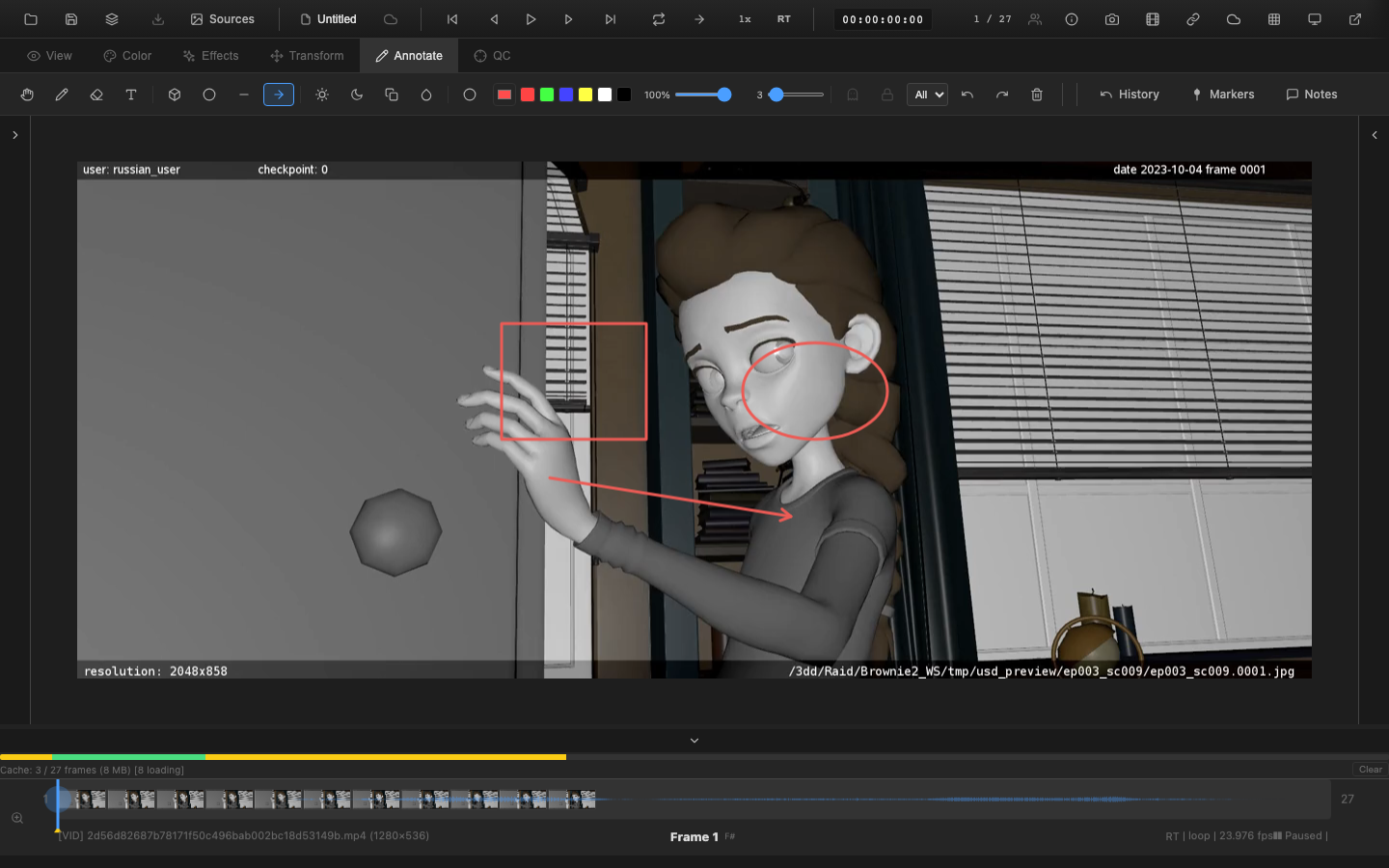
Shape tools create geometric annotations on the viewer canvas. They are useful for circling areas of interest, drawing attention to specific regions, and creating structured markup for review notes.
Available Shapes
| Tool | Shortcut | Description |
|---|---|---|
| Rectangle | R | Draw a rectangle by clicking and dragging |
| Ellipse | O | Draw an ellipse by clicking and dragging |
| Line | L | Draw a straight line between two points |
| Arrow | A | Draw a line with an arrowhead at the end |
| Polygon | -- | Draw a multi-point polygon (via toolbar) |
Select a shape tool from the toolbar or press the corresponding shortcut key while in the Annotate tab (key 5).
Drawing Shapes
Rectangle and Ellipse
- Select the tool (
Rfor rectangle,Ofor ellipse) - Click on the canvas where one corner (or edge) should start
- Drag to the opposite corner
- Release the mouse button to finalize the shape
Line and Arrow
- Select the tool (
Lfor line,Afor arrow) - Click on the canvas at the start point
- Drag to the end point
- Release to finalize
Arrow shapes include an arrowhead at the end point, indicating direction.
Fill and Stroke
Shapes support both fill and stroke options:
- Stroke color -- the outline color, set via the color picker or presets in the toolbar
- Stroke width -- the outline thickness, set via the width slider
- Fill -- shapes can optionally have a filled interior
Configure these properties before drawing the shape. The active settings apply to all subsequently drawn shapes.
Spotlight Tool
Press Shift+Q to enable the spotlight tool. This creates a highlighted region (circle or rectangle) while dimming everything outside it. The effect draws the viewer's attention to a specific area of the image.
Spotlight is useful during presentations and review sessions to focus discussion on a particular region without the distraction of the surrounding image.
Shape Annotations vs. Freehand
Shape annotations are stored as geometric primitives (type, position, dimensions, color, width) rather than as pixel data. This means they:
- Scale cleanly when zooming in and out
- Take less storage space than freehand strokes
- Can be precisely positioned using click-and-drag
Freehand pen strokes (see Pen and Eraser) are better for organic, hand-drawn markup.
Undo and Redo
Each shape placed on the canvas is an individual undo step. Press Ctrl+Z to remove the most recent shape. Press Ctrl+Y to restore it.
Per-Frame Storage
Like all annotations, shapes are stored per frame. Each frame maintains its own collection of shapes, pen strokes, and text annotations independently.
Related Pages
- Pen and Eraser -- freehand drawing tools
- Text Annotations -- add text labels
- Per-Frame Modes -- ghost and hold modes
- Exporting Annotations -- JSON and PDF export
- Wipe Mode -- annotate while comparing versions (
Shift+W)