J/K/L Navigation and Speed Control
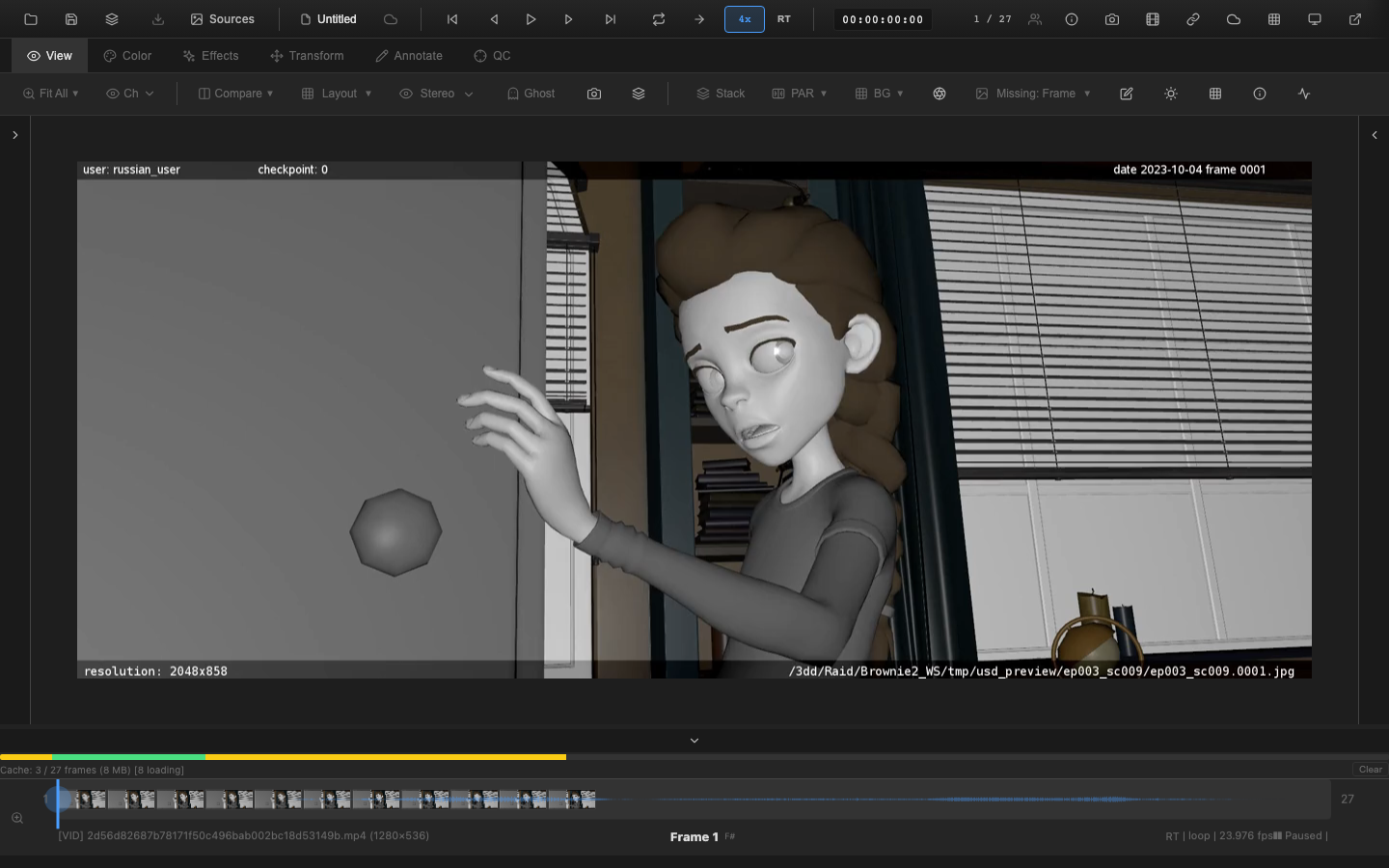
OpenRV Web implements the professional J/K/L shuttle controls found in editing and review applications. These three keys provide fast, hands-on-keyboard control over playback speed and direction.
J/K/L Shuttle Controls
The J, K, and L keys map to standard industry conventions:
| Key | Action | Binding |
|---|---|---|
J | Decrease playback speed (step to previous preset) | playback.slower |
K | Pause playback | playback.stop |
L | Increase playback speed (step to next preset) | playback.faster |
Pressing L repeatedly steps through the forward speed presets: 1x, 2x, 4x, 8x. After reaching 8x, the next press wraps back to 1x. Pressing J steps backward through the presets: 1x, 0.5x, 0.25x, 0.1x.
Pressing K at any speed immediately pauses playback, regardless of the current speed or direction.
Speed Presets
The following speed presets are available:
| Speed | Use Case |
|---|---|
| 0.1x | Detailed frame analysis, slow motion review |
| 0.25x | Slow motion |
| 0.5x | Half speed for careful review |
| 1x | Normal playback (default) |
| 2x | Quick scan through footage |
| 4x | Fast forward |
| 8x | Rapid scan for long sequences |
Speed Button
The speed button in the header bar displays the current playback speed (e.g., "1x", "2x", "0.5x"). It provides three interaction methods:
- Click -- cycle forward through presets (1x, 2x, 4x, 8x, then back to 1x)
- Shift+Click -- cycle backward through presets (decrease speed)
- Right-click -- open a context menu showing all presets with the current speed highlighted
The button uses a monospace font for consistent width. When the speed is not 1x, the button highlights with the accent color to provide a visual reminder.
Reverse Playback
Press Up Arrow to toggle the playback direction between forward and reverse. The direction button icon in the header bar updates to reflect the current direction.
Reverse playback has a speed limit of 4x to prevent frame extraction issues with the WebCodecs decoder. Forward playback supports the full 8x maximum. If the speed is set to 8x and the direction toggles to reverse, the effective speed is capped at 4x.
Audio at Non-1x Speeds
Audio behavior changes at different playback speeds:
- 1x forward -- audio plays normally with sync correction
- Non-1x speeds -- audio is paused to avoid distorted playback
- Reverse playback -- audio is automatically muted (reverse audio is not useful for review)
- Return to 1x forward -- audio resumes at the previous volume level
The preservesPitch toggle in the speed context menu controls whether the browser attempts pitch correction during variable-speed playback (default: on). This setting affects the HTMLVideoElement playback rate behavior for native video sources.
Volume state is preserved across all speed and direction changes. Muting for speed or direction changes is handled separately from the user mute toggle, so the user's preferred volume always restores when returning to normal playback.
Speed During Playback
Changing speed during active playback takes effect immediately. The frame accumulator resets on speed change to prevent timing discontinuities -- the playback transitions smoothly to the new rate without frame jumps.
Changing direction during playback also resets timing to ensure clean transitions.
Scripting API
Playback speed is accessible through the public JavaScript API:
// Set playback speed
window.openrv.playback.setSpeed(2);

// Get current speed
const speed = window.openrv.playback.getSpeed?.();

// Play, pause, seek
window.openrv.playback.play();
window.openrv.playback.pause();
window.openrv.playback.seek(50);  // Go to frame 50
Keyboard Reference
| Key | Action |
|---|---|
J | Decrease speed to previous preset |
K | Pause playback |
L | Increase speed to next preset |
Space | Toggle play/pause |
Up Arrow | Toggle forward/reverse direction |
Left Arrow | Step one frame backward |
Right Arrow | Step one frame forward |
Related Pages
- Timeline Controls -- frame navigation and scrubbing
- Loop Modes and Stepping -- loop behavior at playback boundaries
- Audio Playback -- audio sync and volume controls
- Viewer Navigation -- pan, zoom, and rotation controls