Channel Isolation
Channel isolation displays a single color channel as a grayscale image, making it possible to inspect the contribution of individual channels without the visual complexity of the full-color image.
Channel Modes
OpenRV Web provides six channel viewing modes:
| Mode | Shortcut | Description |
|---|---|---|
| RGB (Normal) | Shift+N | Full-color display (default) |
| Red | Shift+R | Red channel displayed as grayscale |
| Green | Shift+G | Green channel displayed as grayscale |
| Blue | Shift+B | Blue channel displayed as grayscale |
| Alpha | Shift+A | Alpha channel displayed as grayscale (fully opaque) |
| Luminance | Shift+L / Shift+Y | Rec.709 luminance (0.2126R + 0.7152G + 0.0722B). Shift+L is the primary shortcut but is overridden by the LUT panel on the Color tab; Shift+Y always works. |
Contextual Overrides
Shift+R, Shift+B, Shift+N, and Shift+L are active by default as global channel shortcuts. However, they are overridden on specific tabs: Shift+R triggers rotate-left on the Transform tab, Shift+B cycles the background pattern on the View tab, Shift+N opens the network panel on the QC tab, and Shift+L opens the LUT panel on the Color tab. If a channel shortcut does not respond, check which tab is active or use the Channel Select dropdown in the toolbar.
Channel Select Dropdown
The Channel Select dropdown appears in the View tab toolbar. It displays the current channel mode with a color indicator dot:
- RGB: neutral color
- Red: red dot (
#ff6b6b) - Green: green dot (
#6bff6b) - Blue: blue dot (
#6b9fff) - Alpha: gray dot
- Luminance: neutral color
Each dropdown item shows the channel name, color indicator, and keyboard shortcut hint.
How It Works
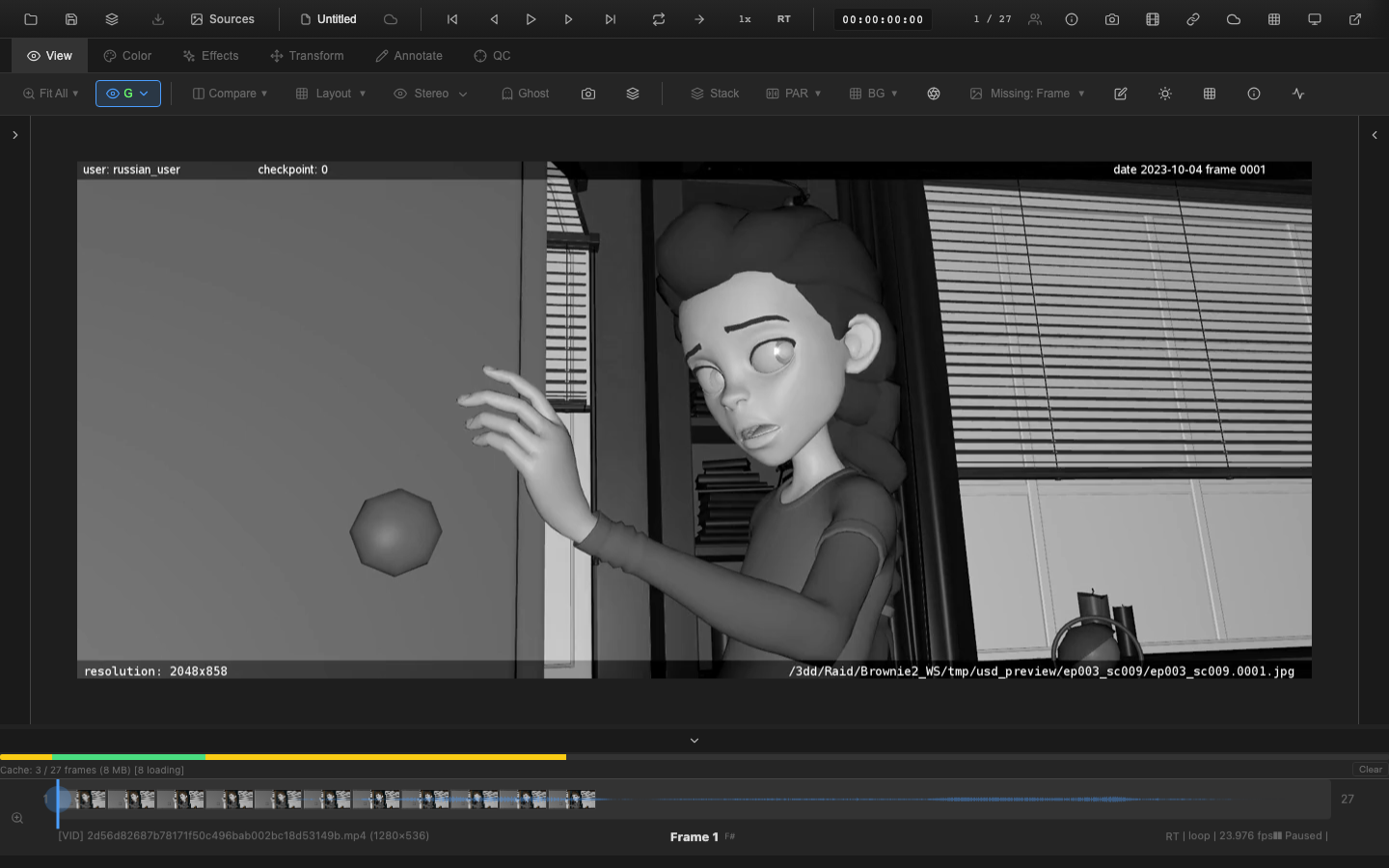
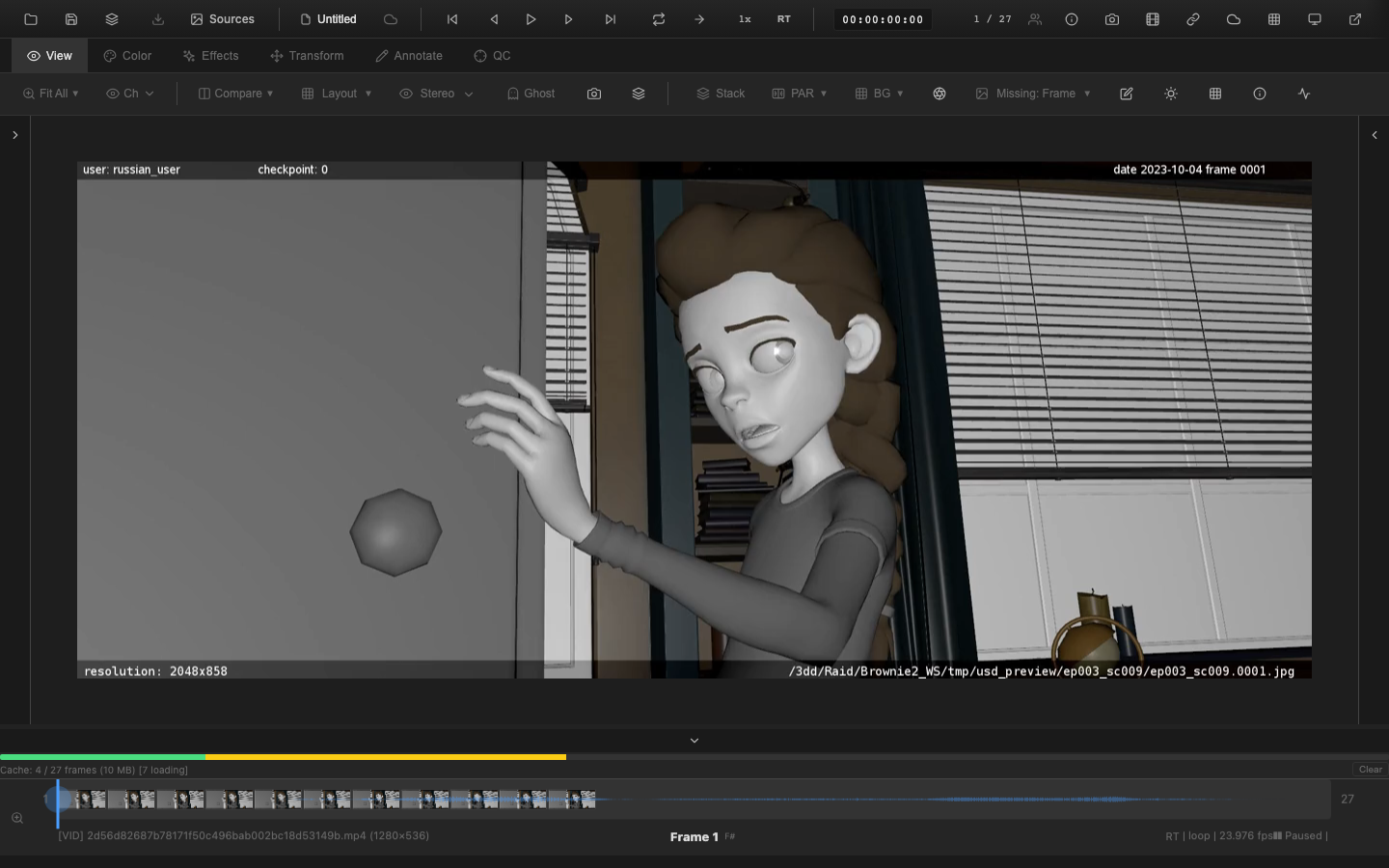
When a single channel is isolated, the viewer extracts the selected channel value from each pixel and displays it across all three RGB channels, producing a grayscale image:
- Red/Green/Blue isolation: The selected channel value replaces all three display channels. A bright area means high values in that channel.
- Alpha isolation: The alpha value is displayed as grayscale with full opacity, making transparent and semi-transparent regions visible.
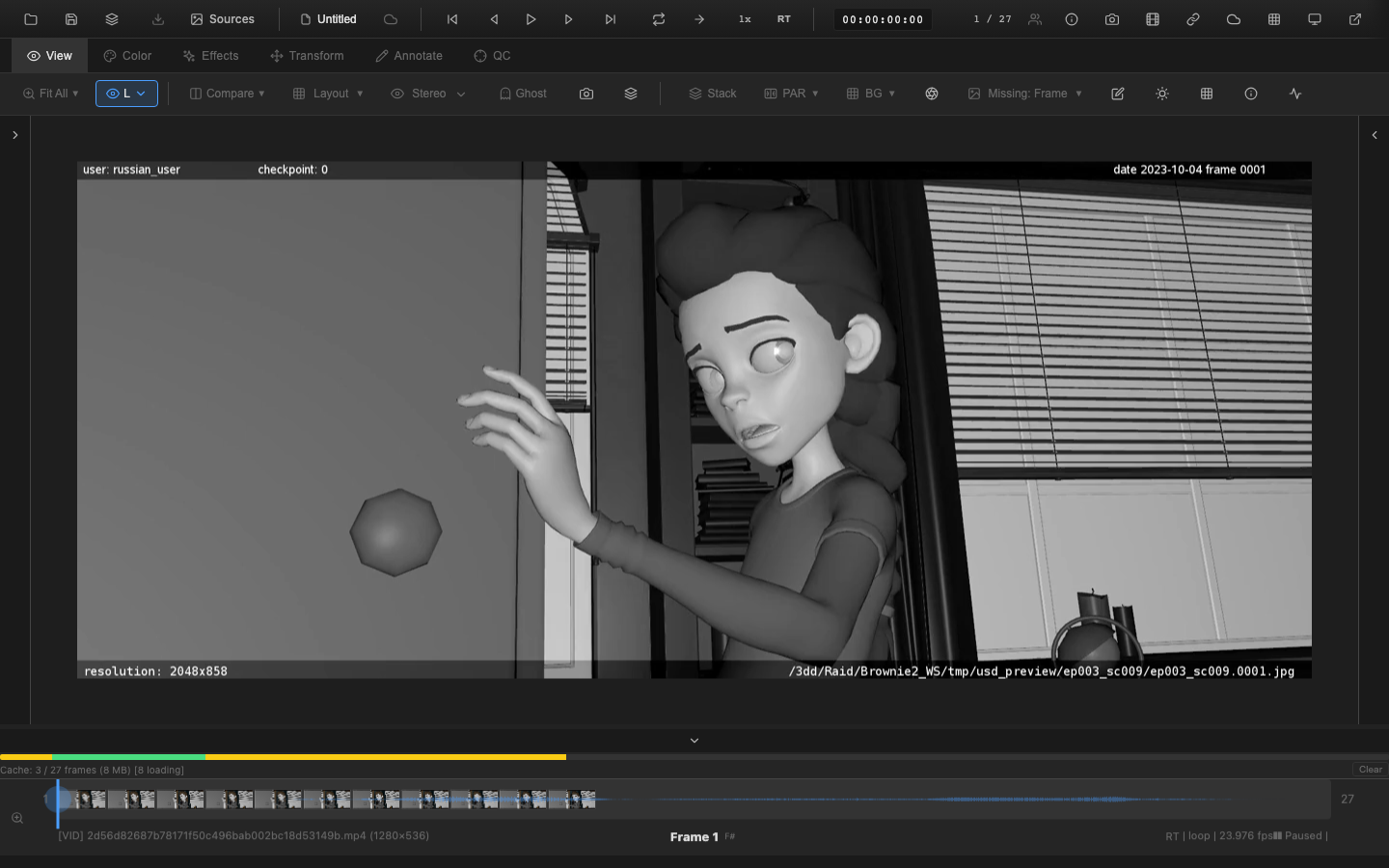
- Luminance: Calculates the weighted sum using Rec.709 coefficients and displays the result as grayscale. Green contributes the most (71.5%), followed by red (21.3%), then blue (7.2%).
Channel isolation is applied late in the render pipeline -- after color corrections, CDL, curves, and filters but before the paint annotation layer.
VFX Use Case
Alpha channel isolation (Shift+A) is the fastest way to QC roto and keying work. A clean matte should have solid white in the foreground, solid black in the background, and smooth semi-transparent edges. Look for chatter (flickering edges frame-to-frame), holes in the matte, and edge fringing. Step through the sequence frame-by-frame with the arrow keys while viewing the alpha to catch temporal instabilities.
Pipeline Note
Channel packing is common in VFX pipelines -- for example, packing a utility matte into the blue channel of a three-channel EXR, or storing motion vectors as R=horizontal and G=vertical displacement. Use channel isolation to verify that packed channels contain the expected data. If the blue channel of a "packed" EXR looks like image data instead of a matte, the render may have been output incorrectly.
Use Cases
- Alpha/matte checking: Isolate the alpha channel (
Shift+A) to verify matte edges, holdout areas, and transparency. - Render pass review: Isolate channels to check for artifacts or unexpected values in specific color planes.
- Noise analysis: View individual channels to identify which channel carries the most noise in an image.
- Color balance: Compare the Red, Green, and Blue channels to evaluate overall color balance and identify color casts.
- Luminance evaluation: Switch to luminance (
Shift+Y) to assess the tonal range without color influence.
Scope Integration
When channel isolation is active, scopes (Histogram, Waveform, Vectorscope) update to reflect the isolated channel data rather than the full RGB image. This provides consistent analysis between what is visible in the viewer and what the scopes display.
State Persistence
The selected channel mode persists across frame changes and tab switches. Switching tabs does not reset the channel selection. To return to normal full-color display, press Shift+N or use the Channel Select dropdown in the toolbar.
Related Pages
- EXR Multi-Layer Workflow -- AOV layer selection complements channel isolation
- Pixel Probe -- read exact channel values under the cursor
- Histogram -- analyze channel distribution