Loop Modes and Frame Stepping
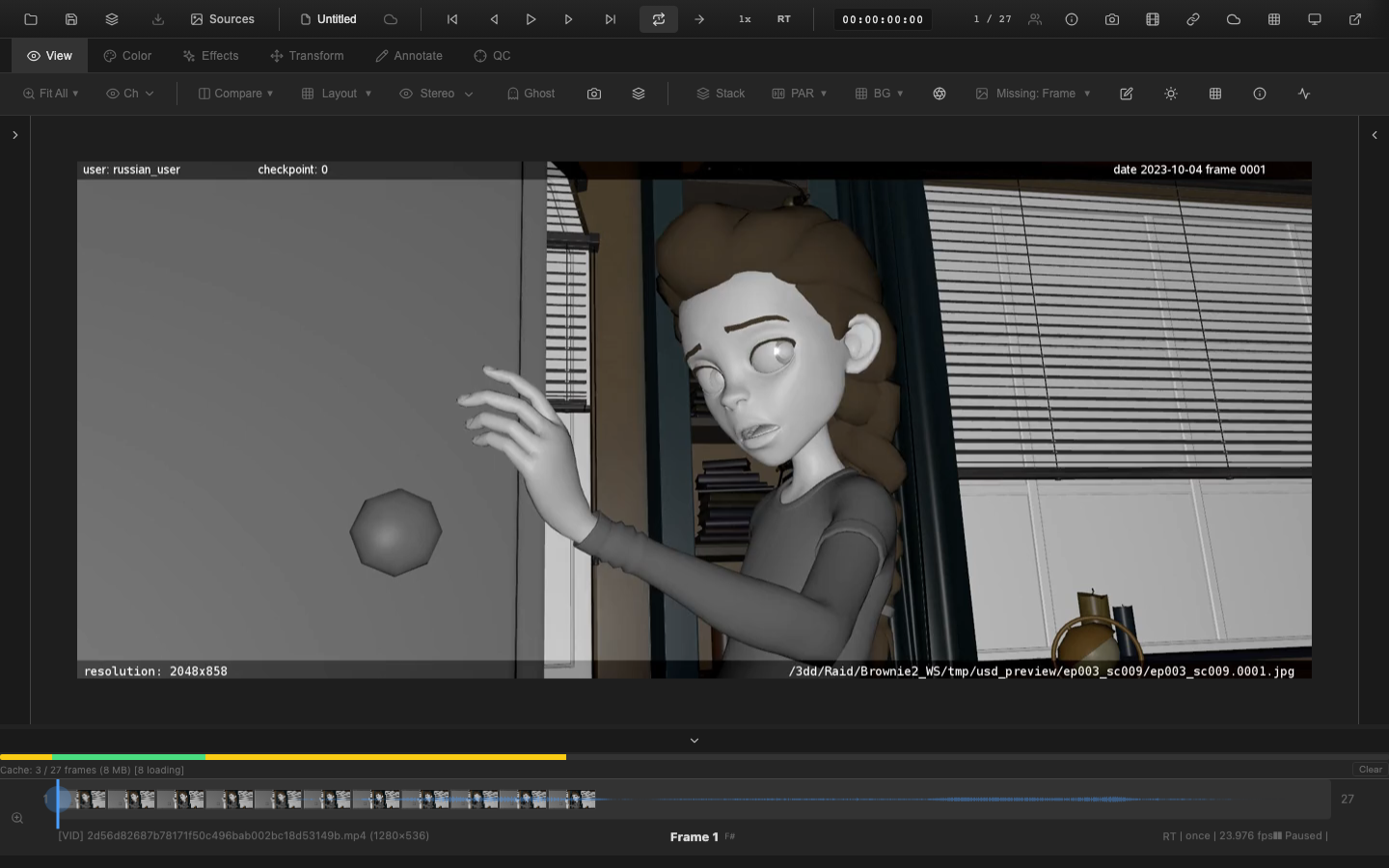
OpenRV Web provides three loop modes that control what happens when playback reaches the end of the frame range. Frame stepping offers precise single-frame navigation for detailed review.
Loop Modes
Cycle through loop modes by clicking the loop mode button in the header bar. The modes cycle in this order: Loop, Ping-pong, Once.
Loop Mode
Icon: Continuous arrows (repeat)
Playback wraps continuously. When the playhead reaches the out point, it jumps back to the in point and continues playing. In reverse, reaching the in point jumps to the out point. This is the default mode, suitable for reviewing a shot or sequence repeatedly.
Ping-Pong Mode
Icon: Bidirectional arrows (shuffle)
Playback reverses direction at boundaries. When the playhead reaches the out point, playback direction changes to reverse and the playhead moves backward. When it reaches the in point, direction changes back to forward. The direction button in the header bar updates automatically when ping-pong reverses.
This mode is useful for studying motion and transitions by watching them play forward and backward continuously.
Once Mode
Icon: Single arrow (repeat-once)
Playback stops when it reaches the boundary. In forward playback, the playhead pauses at the out point. In reverse, it pauses at the in point. The play button returns to its ready state after stopping.
Loop Mode Indicator
The timeline status bar displays the current loop mode alongside the playback state and FPS. The format is:
Playing | 24/24 fps | loopThe loop mode button in the header bar is a compact icon-only control (28px). Hovering over it shows a tooltip with the current mode name (e.g., "Loop", "Ping-Pong", "Play Once"). The button also carries an aria-label for screen readers.
In/Out Point Integration
Loop modes respect the defined in/out point range. Playback is constrained to play only between the in and out points. If no in/out points are set, the full frame range is used.
| Action | Shortcut |
|---|---|
| Set in point | I or [ |
| Set out point | O or ] |
| Reset in/out | R |
| Go to in point | Home |
| Go to out point | End |
Frame Stepping
Frame stepping moves exactly one frame at a time, regardless of playback state.
| Action | Shortcut |
|---|---|
| Step forward one frame | Right Arrow |
| Step backward one frame | Left Arrow |
Frame stepping respects in/out points. Stepping forward beyond the out point clamps to the out point. Stepping backward beyond the in point clamps to the in point.
The frame increment is configurable (default: 1). When set to a value greater than 1, each step advances by that many frames. This is controllable through the scripting API:
// Step forward by current increment
window.openrv.playback.step();

// Access current frame
const frame = window.openrv.playback.getCurrentFrame();
Sub-Frame Interpolation
OpenRV Web includes a sub-frame interpolation feature that alpha-blends between adjacent frames for smooth slow-motion playback. When enabled, fractional frame positions produce a weighted blend of the two nearest frames rather than snapping to the nearest whole frame.
Sub-frame interpolation is disabled by default and can be toggled through the session settings.
Direction Toggle
Press Up Arrow to toggle between forward and reverse playback. The direction button icon in the header bar updates to show the current direction. Toggling direction during playback takes effect immediately and resets the frame timing to prevent jumps.
In ping-pong mode, the automatic direction reversal at boundaries also updates the direction button.
Playlist Loop Modes
When using the playlist feature, a separate loop mode system applies:
| Mode | Behavior |
|---|---|
| No Loop | Stop at end of playlist |
| Loop Clip | Repeat the current clip |
| Loop All | Restart from the first clip after the last |
Playlist loop modes are configured in the Playlist panel (Shift+Alt+P).
State Persistence
Loop mode, playback speed, and direction are preserved in the session state. They persist across frame changes and tab switches. When saving a project (.orvproject), the loop mode is included in the playback state and restored on load.
Related Pages
- Timeline Controls -- in/out points, markers, scrubbing
- J/K/L Navigation -- speed control and shuttle
- Audio Playback -- audio behavior during loop transitions
- Viewer Navigation -- pan, zoom, and rotation controls