EXR Multi-Layer and AOV Workflow
OpenRV Web supports multi-layer EXR files with AOV (Arbitrary Output Variable) selection and channel remapping, allowing artists to inspect individual render passes without opening a compositing application.
Multi-Layer EXR Overview
OpenRV Web decodes EXR files using a TypeScript decoder with Float32 HDR precision. Multi-layer EXR files contain multiple named layers, each representing a different render pass or data channel. Common layers include:
| Layer | Purpose |
|---|---|
beauty or rgba | Final composited render |
diffuse | Diffuse lighting pass |
specular | Specular highlights |
reflection | Mirror and glossy reflections |
refraction | Transparent surface refraction |
emission | Self-illuminating elements |
shadow | Shadow contribution |
ambient_occlusion | AO pass |
normal | Surface normal directions |
depth or Z | Depth buffer |
motion | Motion vectors |
crypto_* | Cryptomatte ID masks |
Each layer can contain multiple channels (typically R, G, B, and sometimes A), stored with the naming convention layerName.channelName (e.g., diffuse.R, specular.G).
Layer Selection UI
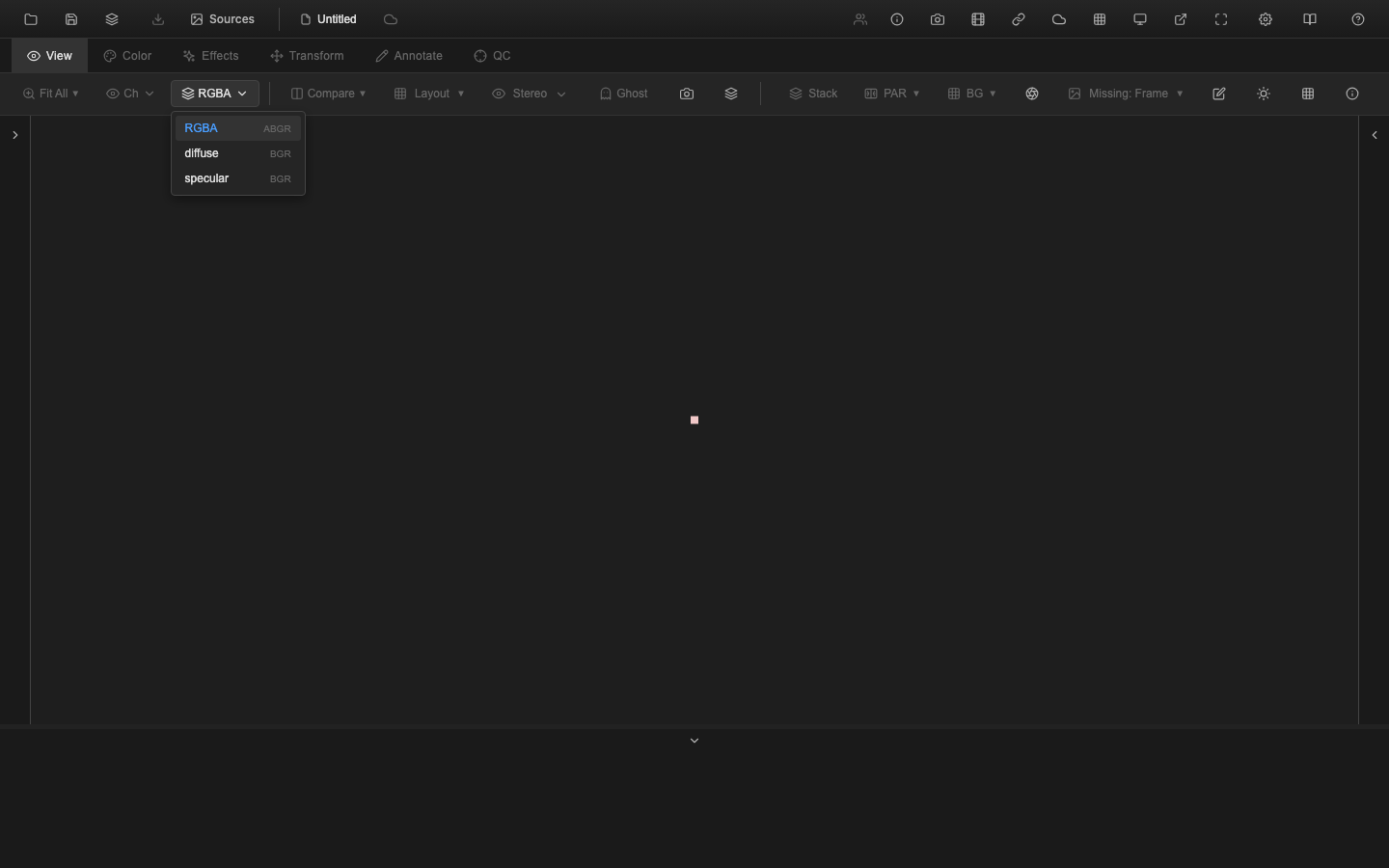
When a multi-layer EXR file is loaded, a layer selection dropdown appears in the View tab toolbar. This dropdown lists all available layers extracted from the file.
Select a layer from the dropdown to view that render pass. The viewer updates immediately to display the selected layer's data. Single-channel layers (such as depth or alpha) are displayed as grayscale.
The layer selection dropdown only appears for multi-layer EXR files. Standard RGB/RGBA EXR files display normally without the dropdown.
Channel Remapping
For multi-layer EXR files, OpenRV Web maps layer channels to the display RGBA channels automatically:
- A layer with R, G, B channels maps directly to display RGB
- A layer with R, G, B, A channels maps to display RGBA
- A single-channel layer maps to all three display RGB channels (grayscale display)
Custom channel remapping is available through the setChannelRemapping() API for advanced workflows. This allows mapping arbitrary EXR channels to the display channels -- for example, mapping normal.X to Red, normal.Y to Green, and normal.Z to Blue.
// Example: View normal map channels
// (API available for programmatic use)
Layer Parsing
The EXR decoder extracts layer information during decoding:
extractLayerInfo()parses channel names to identify layers- Layer names are deduced from the channel naming convention (e.g.,
diffuse.Rbelongs to thediffuselayer) - The
FileSourceNode.getEXRLayers()method returns the list of available layers FileSourceNode.setEXRLayer()switches the active layer
Compression Support
OpenRV Web supports multiple EXR compression methods:
- PIZ -- wavelet compression using Huffman, Haar transform, and LUT encoding. Best for grainy or noisy images.
- DWA (DWAA/DWAB) -- lossy DCT-based compression. Good for preview-quality images at smaller file sizes.
- ZIP and ZIPS -- standard deflate compression.
- RLE -- run-length encoding for images with large flat areas.
- PXR24 -- lossy compression for float channels (lossless for half-float). Truncates 32-bit floats to 24 bits.
- Uncompressed (NONE) -- no compression, fastest decode.
Multi-View EXR
Multi-view EXR files contain separate left and right eye views for stereo 3D workflows. OpenRV Web detects multi-view files and integrates with the stereo viewing system. Each view can contain its own set of layers and channels.
Select the stereo mode (Shift+3) to display multi-view EXR content in the available stereo display modes (side-by-side, over/under, anaglyph, etc.).
Data and Display Windows
EXR files can define separate data windows and display windows:
- Display window -- the intended output resolution
- Data window -- the region containing actual pixel data (may be smaller or offset)
OpenRV Web visualizes this distinction with the EXR Window Overlay, which draws borders showing both windows. This is useful for compositing review where overscan or region-of-interest rendering produces data windows that differ from the display window.
Pipeline Note
Multi-layer EXR files are the standard delivery format in VFX for render passes (AOVs). Lighting TDs output separate diffuse, specular, reflection, SSS, and utility passes so that compositors can adjust each contribution independently in Nuke. OpenRV Web lets supervisors review all AOVs without opening a comp application, catching issues like missing shadow passes, noisy specular, or incorrect depth ranges early in the pipeline.
VFX Use Case
When reviewing CG lighting, cycle through the diffuse and specular layers to evaluate the balance between diffuse fill and specular highlights. Check the depth pass with the pixel probe to verify that Z-values are in the expected range for downstream defocus effects. Examine the cryptomatte layers to confirm that object/material IDs are correctly assigned before the comp artist builds mattes from them.
AOV Inspection Workflow
A typical AOV inspection workflow:
- Load a multi-layer EXR file
- Start with the beauty pass (usually the default layer)
- Select different layers from the dropdown to inspect render passes
- Use channel isolation (e.g.,
Shift+Gfor green, or the Channel Select dropdown for red/blue) to examine individual channels within a layer - Use the pixel probe (
Shift+I) to read exact Float32 values - Compare layers with the A/B switching or wipe tools
Compositing Use Cases
Multi-layer EXR review in OpenRV Web supports common compositing review tasks:
- Lighting review -- compare diffuse and specular passes to evaluate lighting balance
- Look development -- inspect beauty alongside reflection and refraction passes
- Troubleshooting -- check depth, normal, and motion vector passes for artifacts
- Matte review -- examine alpha and cryptomatte layers for holdout accuracy
- Quality control -- verify all required AOVs are present and correctly rendered
Related Pages
- Channel Isolation -- view individual R/G/B/A/Luminance channels
- Image Sequences -- play back EXR sequences
- Pixel Probe -- sample Float32 HDR values
- File Formats Reference -- all supported formats