Pixel Probe
The pixel probe provides a real-time readout of exact color values under the cursor, used for color evaluation, exposure verification, and checking pixel values against delivery specifications.
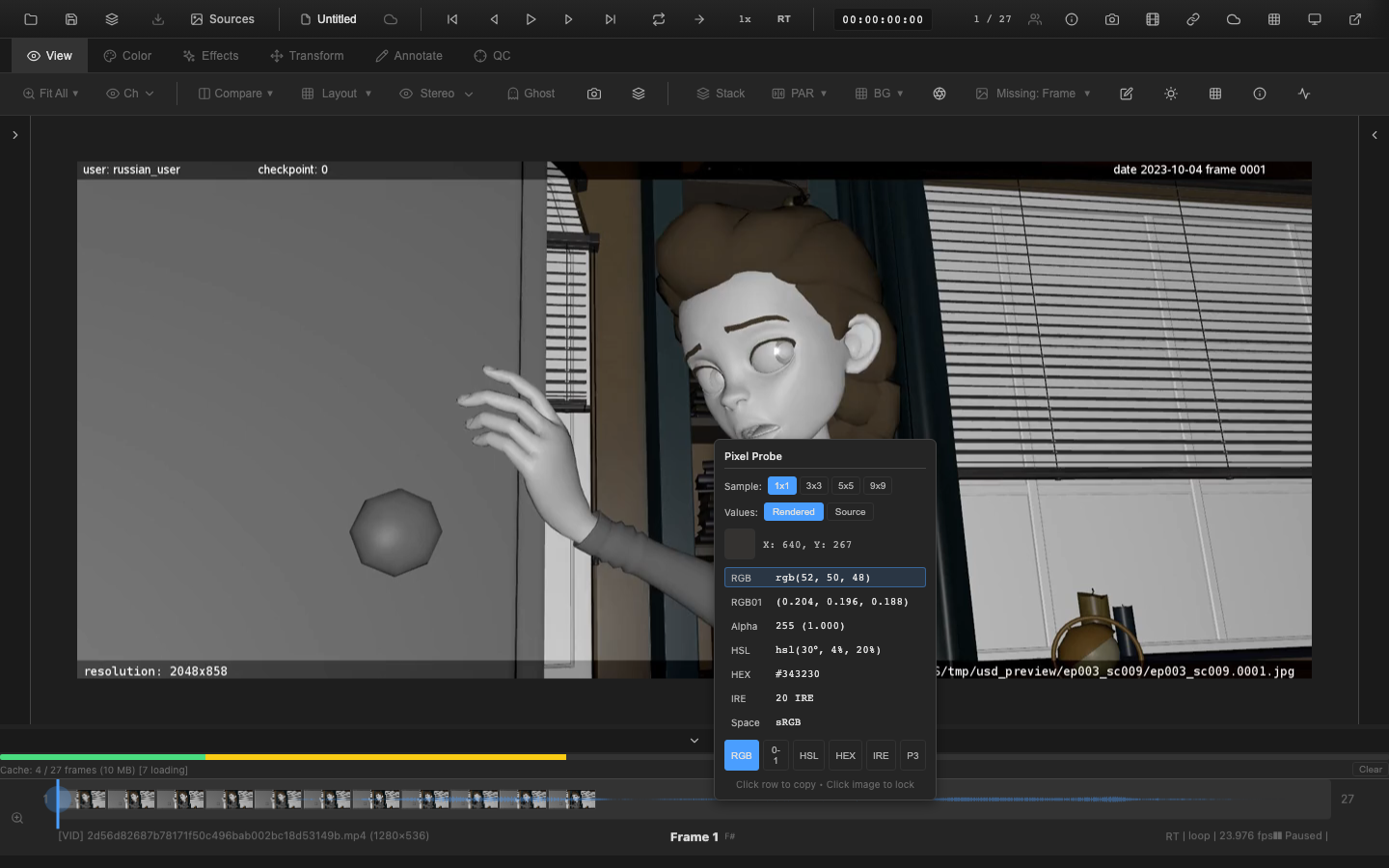
Enabling the Pixel Probe
Press Shift+I to toggle the pixel probe. A floating overlay appears near the cursor and follows it across the viewer. An eyedropper icon in the View tab toolbar also toggles the probe. Press Shift+I again or Escape to close it.
Display Information
The probe overlay shows:
| Field | Description |
|---|---|
| Coordinates | Pixel position (X, Y) in source image space |
| Color swatch | Preview of the sampled color |
| RGB | Integer RGB values (0--255) |
| RGB 0-1 | Floating-point RGB values (0.0--1.0) |
| HSL | Hue (degrees), Saturation (%), Lightness (%) |
| HEX | Hexadecimal color code (#RRGGBB) |
| IRE | Luminance in IRE units using Rec.709 coefficients |
| Alpha | Alpha channel value shown as both 0--255 integer and 0.0--1.0 float. When alpha is below 255, the color swatch displays a checkerboard pattern behind the semi-transparent color. |
| Nits | HDR luminance in cd/m² (candelas per square meter). Only visible when HDR float data is available. Values above 1000 cd/m² are displayed in K cd/m² notation (e.g., "1.25 K cd/m²"). Computed as Rec.709 luminance multiplied by 203. |
| Color Space | The active color space label (e.g., "sRGB", "Display P3", "Rec.2020"). Updated via the setColorSpace() method when the viewer detects the source color space. |
Float Precision Toggle
The P3/P6 button in the format button row toggles the number of decimal places used for floating-point value display:
- P3 (default): 3 decimal places (e.g.,
0.502, 0.310, 0.118) - P6: 6 decimal places (e.g.,
0.501961, 0.309804, 0.117647)
The precision setting affects the RGB 0--1 row and clipboard copy output. When P6 is active, the button is highlighted. This is useful when precise float values matter, such as verifying linear-light data in EXR files or checking HDR values that exceed the 0--1 range.
Format Selector
Buttons at the bottom of the overlay allow selecting which format to emphasize:
- RGB -- integer format
- 0-1 -- floating-point format
- HSL -- hue/saturation/lightness
- HEX -- hexadecimal
- IRE -- broadcast luminance
The selected format is highlighted. All formats are always visible in the overlay regardless of selection.
Lock Position
Click on the canvas while the probe is enabled to lock the probe at the current position. The lock indicator icon in the overlay header changes to show the locked state. While locked, moving the mouse does not update the probe values -- they remain fixed at the locked position.
Click on the canvas again to unlock and resume live tracking.
Locking is useful for comparing values at a specific pixel across different frames during playback or after color adjustments.
Copy to Clipboard
Click on any value row in the overlay to copy that value to the system clipboard. This makes it easy to record specific pixel values for documentation, bug reports, or communication with other artists.
IRE Luminance
The IRE value represents perceived brightness using Rec.709 coefficients:
- Y = 0.2126 * R + 0.7152 * G + 0.0722 * B
| IRE Value | Interpretation |
|---|---|
| 0 IRE | Absolute black |
| ~18 IRE | Mid-gray (18% reflectance) |
| 100 IRE | Reference white |
| > 100 IRE | Super-white / HDR values |
VFX Use Case
Use the pixel probe to verify VFX delivery specs. Many studios require specific black point values (e.g., 0.0 for EXR, code value 64 for 10-bit DPX) and white point ranges. Lock the probe on a known reference patch (gray card, color chart) and compare the RGB values against the expected targets. Copy the values to clipboard for inclusion in QC reports.
Pipeline Note
When reviewing compositing work, probe the edge pixels of a keyed element to check for residual green/blue spill. The floating-point RGB readout reveals subtle spill contamination that may not be visible to the eye but will become apparent when a grade is applied. Values like R:0.45 G:0.47 B:0.44 on a supposedly neutral edge indicate residual green spill that needs despill correction.
State Persistence
The pixel probe visibility persists when changing frames and when switching tabs. Enabling the probe on frame 1, stepping to frame 50, and switching from the View tab to the Color tab does not disable the probe.
Overlay Positioning
The probe overlay follows the cursor with an offset to avoid obscuring the sampled pixel. When the cursor approaches the edge of the viewport, the overlay repositions to stay within visible bounds.
The overlay uses a semi-transparent dark background with rounded corners, box shadow, and a minimum width of 180 pixels.
Scripting API
Pixel probe state is accessible through the view API at window.openrv.view:
// Enable / disable the probe overlay
openrv.view.enableProbe();
openrv.view.disableProbe();

// Check whether the probe is active
const active = openrv.view.isProbeEnabled();

// Lock / unlock the probe position
openrv.view.toggleProbeLock();
const locked = openrv.view.isProbeLocked();

// Read current probe values (position, RGB, HSL, IRE, etc.)
const state = openrv.view.getProbeState();
console.log(`Pixel (${state.x}, ${state.y}): rgb(${state.rgb.r}, ${state.rgb.g}, ${state.rgb.b})`);
console.log(`IRE: ${state.ire}, Alpha: ${state.alpha}`);

// Change the highlighted display format
openrv.view.setProbeFormat('hsl');   // 'rgb', 'rgb01', 'hsl', 'hex', 'ire'

// Set sample area size for averaging
openrv.view.setProbeSampleSize(3);   // 1, 3, 5, or 9 (NxN)
const size = openrv.view.getProbeSampleSize();

// Switch between rendered (post-grade) and source (pre-grade) values
openrv.view.setProbeSourceMode('source');
const mode = openrv.view.getProbeSourceMode(); // 'rendered' or 'source'
Related Pages
- Histogram -- overall value distribution
- Waveform Monitor -- spatial brightness analysis
- False Color and Zebra -- exposure visualization overlays
- Channel Isolation -- view individual channel values