Waveform Monitor
The waveform monitor displays luminance or color values plotted against the horizontal position in the image. Unlike the histogram, which shows overall distribution, the waveform preserves spatial information -- the left side of the waveform corresponds to the left side of the image.
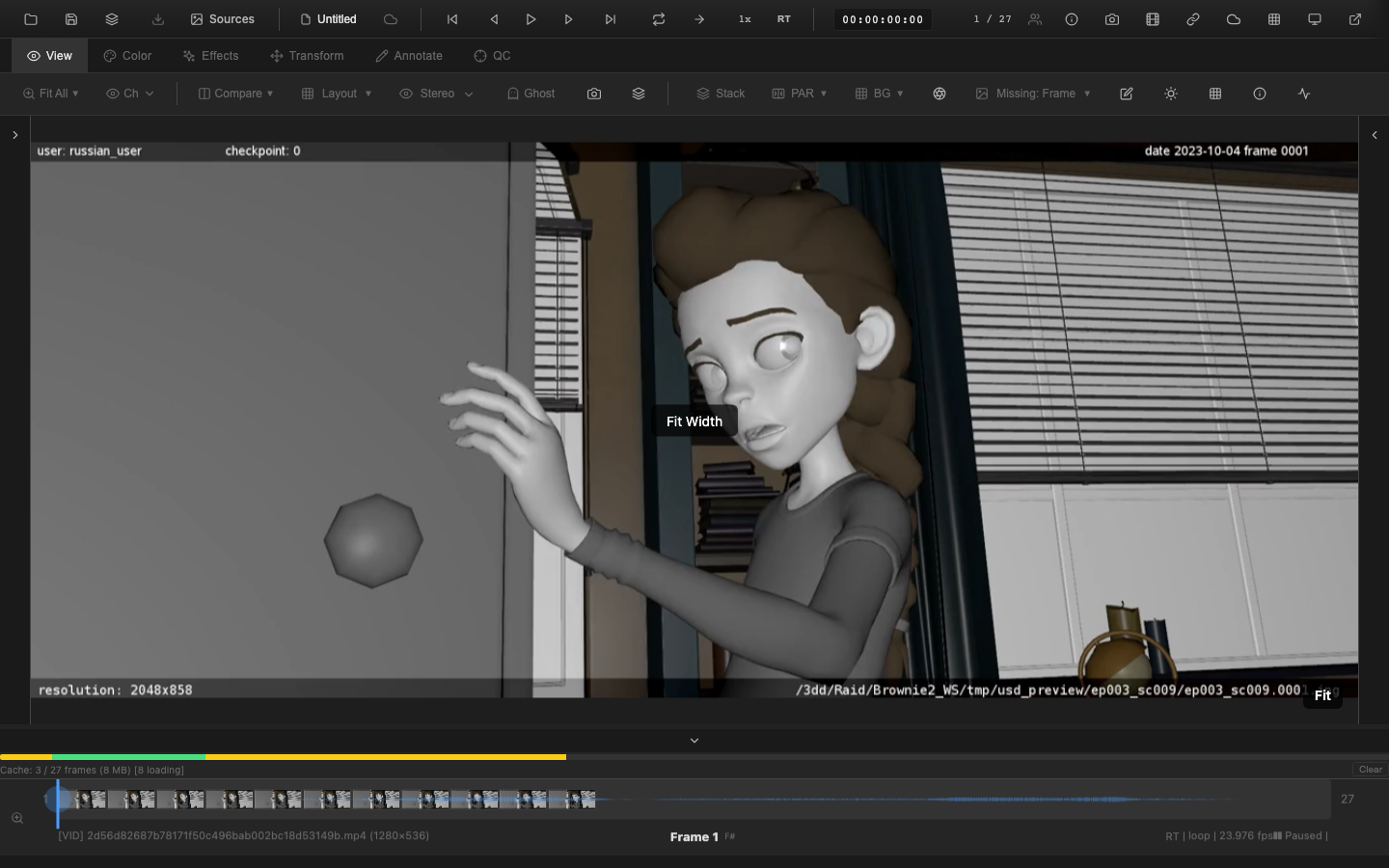
Opening the Waveform
Toggle the waveform monitor from the QC toolbar or by assigning a custom shortcut in the Shortcut Editor. It appears as a floating overlay. Press Escape to close it.
Note: The
Wkey is assigned to fit-to-width by default. To useWfor the waveform, set a custom binding in the Shortcut Editor.
Display Modes
Luma
Displays a single luminance waveform. The vertical axis represents brightness (0 at the bottom, peak white at the top). Each column of the waveform shows the brightness range of the pixels at that horizontal position in the image. This mode is the most common for exposure evaluation.
RGB
Displays red, green, and blue waveforms overlaid on the same graph, each in its respective color. This mode reveals color balance across the image -- if one channel consistently sits above or below the others, a color cast is present.
Parade
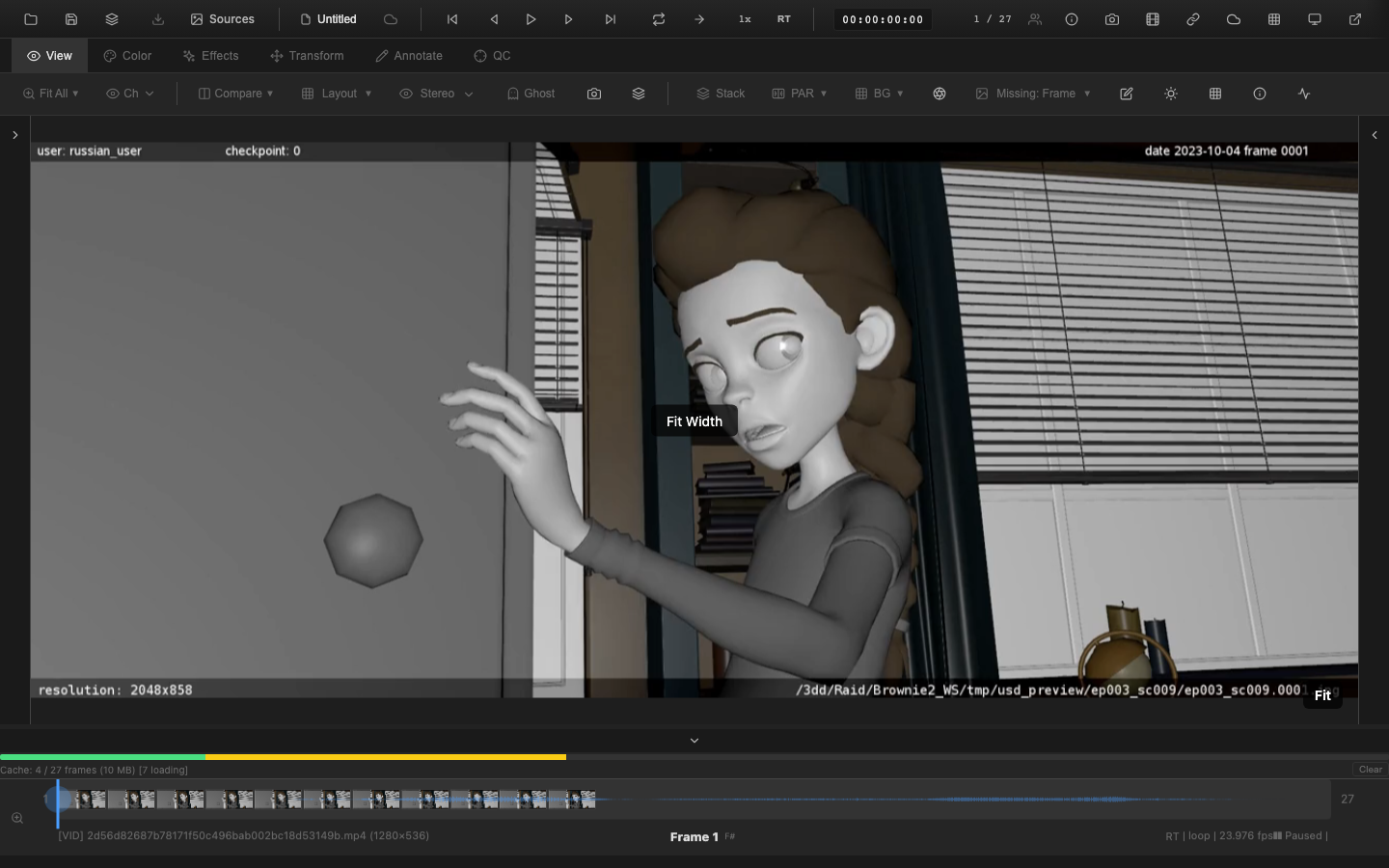
Displays red, green, and blue waveforms side by side in three separate columns. This layout makes it easier to compare channels without overlap confusion. The parade is the preferred mode for matching black levels and white levels across channels during color correction.
YCbCr
Displays waveforms in YCbCr color space using BT.709 coefficients. The Y (luma) component is shown alongside the Cb (blue-difference) and Cr (red-difference) components. This mode is relevant for broadcast workflows where signal levels must conform to specific standards.
Reading the Waveform
The waveform uses BT.709 coefficients for luminance calculation:
- Y = 0.2126 * R + 0.7152 * G + 0.0722 * B
Key interpretation guidelines:
| Pattern | Meaning |
|---|---|
| Flat line at top | Highlights clipped at maximum value |
| Flat line at bottom | Shadows crushed at zero |
| Tight band | Low contrast; limited tonal range |
| Wide spread | Full contrast; good tonal range |
| Left side brighter than right | Uneven lighting across the frame |
| One channel higher than others | Color cast |
Exposure Reference Levels
For broadcast content, standard exposure levels are:
- 100 IRE: Peak white (reference white for broadcast)
- 0 IRE: Black level
HDR content extends beyond 100 IRE. The waveform in OpenRV Web accommodates values beyond 1.0 to display HDR content correctly.
Rendering
The waveform uses a dual rendering architecture. When WebGL scopes are available, the waveform is computed on the GPU for real-time performance with high-resolution and HDR imagery. When GPU scopes are unavailable -- for example, on devices without WebGL2 support or when the shared scopes processor fails to initialize -- the waveform falls back to a CPU rendering path that produces the same visual output using the Canvas 2D API.
The scope updates live as the frame changes or as color adjustments are applied, regardless of which rendering path is active.
Pipeline Note
For broadcast delivery, signals must fall within legal levels: 16-235 (8-bit) or 64-940 (10-bit) for video-legal, which corresponds to 0-100 IRE. Values outside this range will be clipped by broadcast encoders. Use the waveform to verify that highlights do not exceed 100 IRE and blacks do not dip below 0 IRE before handing off to editorial or mastering.
VFX Use Case
Skin tones should sit around 70 IRE for properly exposed Caucasian skin, with darker skin tones typically in the 50-65 IRE range. During dailies, use the parade mode to verify that skin tone exposure is consistent across shots in a sequence -- if the three channels are not tracking together in the skin tone region, a color cast is present that needs correction before the grade.
Practical Tips
- Use the parade mode when matching exposure across shots in a sequence
- Check that highlights do not clip at the top of the luma waveform during color correction
- Compare the shape of the RGB parade channels to identify color shifts that are difficult to see by eye
- The waveform is especially useful for evaluating skin tones, which should maintain consistent exposure across the frame
Related Pages
- Histogram -- overall pixel value distribution
- Vectorscope -- color hue and saturation analysis
- Pixel Probe -- point-sample pixel values
- False Color and Zebra -- exposure warning overlays