Keyboard Shortcuts Reference
This page lists all keyboard shortcuts available in OpenRV Web. Shortcuts are organized by category. On macOS, the Ctrl key maps to Cmd automatically.
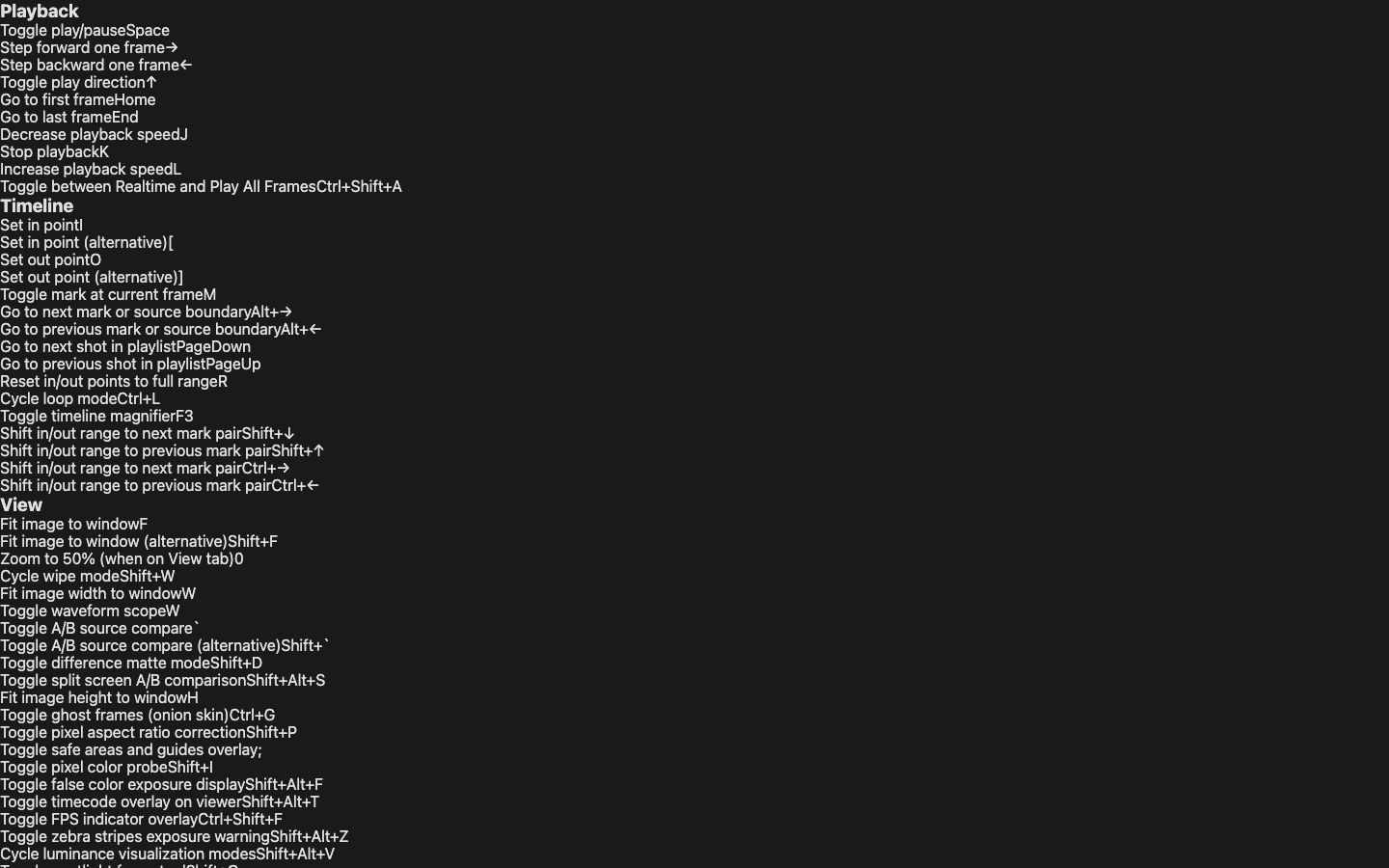
Playback
| Shortcut | Action |
|---|---|
Space | Play / Pause |
Left Arrow | Step one frame backward |
Right Arrow | Step one frame forward |
Up Arrow | Toggle playback direction (forward/reverse) |
Home | Go to first frame (or in point) |
End | Go to last frame (or out point) |
J | Decrease playback speed (previous preset) |
K | Pause playback |
L | Increase playback speed (next preset) |
View and Navigation
| Shortcut | Action |
|---|---|
F | Fit image to window |
Shift+F | Fit image to window (alternative) |
0 | Set zoom to 50% |
1 | Switch to View tab |
2 | Switch to Color tab |
3 | Switch to Effects tab |
4 | Switch to Transform tab |
5 | Switch to Annotate tab |
6 | Switch to QC tab |
F11 | Toggle fullscreen mode |
Ctrl+Shift+P | Toggle presentation mode (clean display, cursor auto-hide) |
N | Toggle nearest-neighbor / bilinear filtering |
Shift+Alt+B | Toggle checkerboard background |
Shift+P | Toggle pixel aspect ratio correction |
Timeline
| Shortcut | Action |
|---|---|
I | Set in point |
[ | Set in point (alternative) |
O | Set out point |
] | Set out point (alternative) |
R | Reset in/out points to full range |
M | Toggle marker at current frame |
Ctrl+L | Cycle loop mode (once / loop / ping-pong) |
Shift+Down | Shift in/out range to next mark pair |
Shift+Up | Shift in/out range to previous mark pair |
Ctrl+Right | Shift in/out range to next mark pair (alternative) |
Ctrl+Left | Shift in/out range to previous mark pair (alternative) |
Alt+Right | Go to next mark or source boundary |
Alt+Left | Go to previous mark or source boundary |
PageDown | Go to next shot in playlist |
PageUp | Go to previous shot in playlist |
F3 | Toggle timeline magnifier |
A/B Compare
| Shortcut | Action |
|---|---|
` (backtick) | Toggle between A/B sources |
~ (tilde) | Toggle between A/B sources |
Shift+W | Cycle wipe mode (off / horizontal / vertical) |
Shift+Alt+S | Toggle split screen (off / horizontal / vertical) |
Shift+D | Toggle difference matte |
Fit Shortcuts
| Shortcut | Action |
|---|---|
H | Fit image height to window |
W | Fit image width to window |
Scopes
| Shortcut | Action |
|---|---|
Y | Toggle vectorscope |
Shift+I | Toggle pixel probe |
Note:
H(histogram) andW(waveform) are contextual shortcuts -- they trigger scopes on the QC tab but default to fit-to-height and fit-to-width globally. See Contextual Shortcuts below.
Exposure and Analysis
| Shortcut | Action |
|---|---|
Shift+Alt+F | Toggle false color display |
Shift+Alt+Z | Toggle zebra stripes |
; | Toggle safe areas and guides overlay |
Shift+Alt+T | Toggle timecode overlay |
Shift+Alt+I | Toggle info panel |
Stereo 3D
| Shortcut | Action |
|---|---|
Shift+3 | Cycle stereo modes (off / SBS / over-under / mirror / anaglyph / etc.) |
Shift+E | Toggle per-eye transform panel |
Shift+4 | Cycle stereo alignment overlay mode |
Display Output
| Shortcut | Action |
|---|---|
Shift+Alt+D | Cycle display profile (Linear / sRGB / Rec.709 / Gamma 2.2 / Gamma 2.4) |
Channel View
| Shortcut | Action |
|---|---|
Shift+R | Red channel only |
Shift+G | Green channel only |
Shift+B | Blue channel only |
Shift+A | Alpha channel only |
Shift+L | Luminance / Grayscale |
Shift+Y | Grayscale (alias for Shift+L) |
Shift+N | Reset to RGB (no channel isolation) |
Note:
Shift+R,Shift+B,Shift+N, andShift+Lare global shortcuts for channel isolation. However, they are overridden on specific tabs:Shift+Rtriggers rotate-left on the Transform tab,Shift+Bcycles the background pattern on the View tab,Shift+Nopens the network panel on the QC tab, andShift+Lopens the LUT panel on the Color tab. See Contextual Shortcuts below.
Color and Effects
| Shortcut | Action |
|---|---|
C | Toggle color panel |
U | Toggle curves panel |
Shift+O | Toggle OCIO color management panel |
Shift+Alt+W | Toggle color wheels (Lift/Gamma/Gain) |
Shift+H | Toggle HSL Qualifier |
Shift+Alt+J | Toggle tone mapping |
Shift+Alt+E | Toggle effects/filter panel |
Ctrl+I | Toggle color inversion |
Shift+Alt+V | Cycle luminance visualization modes |
Transform
| Shortcut | Action |
|---|---|
Shift+R | Rotate left 90 degrees (Transform tab only; red channel globally) |
Alt+R | Rotate right 90 degrees |
Alt+H | Flip horizontal |
Shift+V | Flip vertical |
Shift+K | Toggle crop mode |
Ctrl+0 | Reset rotation to 0 degrees |
Annotations
| Shortcut | Action |
|---|---|
V | Pan tool (no drawing) |
P | Pen tool |
E | Eraser tool |
T | Text tool |
R | Rectangle tool |
O | Ellipse tool |
L | Line tool |
A | Arrow tool |
B | Toggle brush type (soft/hard) |
G | Toggle ghost mode |
Ctrl+G | Toggle ghost frames (onion skin) |
X | Toggle hold mode (persist annotations across frames) |
Shift+Q | Toggle spotlight |
Ctrl+Z | Undo |
Ctrl+Y | Redo |
, | Jump to previous annotated frame |
. | Jump to next annotated frame |
Panels
| Shortcut | Action |
|---|---|
Escape | Close open panel |
Shift+T | Cycle theme (auto / dark / light) |
Shift+Alt+H | Toggle history panel |
Shift+Alt+M | Toggle markers panel |
Shift+N | Toggle network sync panel (QC tab only; reset channel globally) |
Shift+Alt+N | Toggle notes panel |
Shift+Alt+P | Toggle playlist panel |
Ctrl+Shift+S | Create quick snapshot |
Ctrl+Shift+Alt+S | Toggle snapshots panel |
Ctrl+Shift+N | Quick disconnect from sync room |
Layout Presets
| Shortcut | Action |
|---|---|
Alt+1 | Switch to Default layout |
Alt+2 | Switch to Review layout |
Alt+3 | Switch to Color layout |
Alt+4 | Switch to Paint layout |
Zoom Presets
| Shortcut | Action |
|---|---|
Ctrl+1 | Zoom to 1:1 (100%) pixel ratio |
Ctrl+2 | Zoom to 2:1 (200%) pixel ratio |
Ctrl+3 | Zoom to 3:1 (300%) pixel ratio |
Ctrl+4 | Zoom to 4:1 (400%) pixel ratio |
Ctrl+5 | Zoom to 5:1 (500%) pixel ratio |
Ctrl+6 | Zoom to 6:1 (600%) pixel ratio |
Ctrl+7 | Zoom to 7:1 (700%) pixel ratio |
Ctrl+8 | Zoom to 8:1 (800%) pixel ratio |
Ctrl+Shift+2 | Zoom to 1:2 (50%) pixel ratio |
Ctrl+Shift+3 | Zoom to 1:3 (~33%) pixel ratio |
Ctrl+Shift+4 | Zoom to 1:4 (25%) pixel ratio |
Ctrl+Shift+5 | Zoom to 1:5 (20%) pixel ratio |
Ctrl+Shift+6 | Zoom to 1:6 (~17%) pixel ratio |
Ctrl+Shift+7 | Zoom to 1:7 (~14%) pixel ratio |
Ctrl+Shift+8 | Zoom to 1:8 (12.5%) pixel ratio |
Focus and Info
| Shortcut | Action |
|---|---|
F6 | Focus next zone |
Shift+F6 | Focus previous zone |
F7 | Toggle info strip overlay |
Shift+F7 | Toggle info strip full path |
Notes Navigation
| Shortcut | Action |
|---|---|
Shift+Alt+N | Toggle notes panel |
Alt+Shift+] | Go to next note |
Alt+Shift+[ | Go to previous note |
Reference
| Shortcut | Action |
|---|---|
Alt+Shift+R | Capture current frame as reference |
Ctrl+Shift+R | Toggle reference comparison overlay |
Audio and Caching
| Shortcut | Action |
|---|---|
Shift+M | Toggle audio mute |
Shift+C | Cycle frame cache mode (None / Nearby / Playback Buffer) |
Ctrl+Shift+A | Toggle between Realtime and Play All Frames |
Version Navigation
| Shortcut | Action |
|---|---|
Alt+] | Go to next version |
Alt+[ | Go to previous version |
Export
| Shortcut | Action |
|---|---|
Ctrl+S | Export current frame |
Ctrl+C | Copy current frame to clipboard |
Contextual Shortcuts
Some shortcuts change behavior depending on the active tab or context. Globally, these keys perform one action, but when a specific tab is active, they are overridden:
| Shortcut | Global Action | Contextual Override |
|---|---|---|
Shift+R | Red channel isolation | Rotate left (Transform tab) |
Shift+B | Blue channel isolation | Cycle background pattern (View tab) |
Shift+N | Reset channel to RGB | Network panel (QC tab) |
Shift+L | Luminance channel | LUT panel (Color tab) |
G | Go to frame | Gamut diagram (QC tab), ghost mode (Annotate tab) |
H | Fit to height | Histogram (QC tab) |
W | Fit to width | Waveform (QC tab) |
If a contextual override is not what you need, switch to a different tab or use the Shortcut Editor to reassign bindings.
Mouse Controls
| Action | Mouse Gesture |
|---|---|
| Zoom in/out | Scroll wheel |
| Pan image | Click and drag |
| Seek to frame | Click on timeline |
| Scrub frames | Drag on timeline |
| Pinch zoom | Two-finger pinch (trackpad/touch) |
Shortcut Cheat Sheet
Press ? or open the Help menu to display the shortcut cheat sheet overlay. This quick-reference panel shows all available shortcuts grouped by category in a scannable grid layout. The cheat sheet overlay is dismissed by pressing Escape or clicking outside the panel.
Shortcut Editor
OpenRV Web includes a dedicated shortcut editor UI for viewing and customizing keyboard shortcuts. Open it from the Settings panel. The editor displays every registered shortcut with its current binding, default binding, and category. Click any shortcut row to record a new key combination.
Customization Features
- Override any default binding -- reassign any shortcut to a different key combination
- Conflict detection -- the editor highlights conflicts in real time when a new binding collides with an existing one, showing which action holds the conflicting key
- Export/Import -- save custom bindings as a JSON file and import them on another machine or browser to share a consistent shortcut layout across a team
- Reset -- return individual bindings or all bindings to defaults
Custom bindings are stored in the browser's localStorage and persist across sessions.
Input Field Handling
Keyboard shortcuts are automatically disabled when typing in text inputs, number inputs, search fields, password fields, textareas, and contenteditable elements. This prevents shortcuts from interfering with text entry.
Shortcuts remain active when focused on non-text controls such as sliders, checkboxes, and buttons.
Related Pages
- Quick Start -- essential shortcuts for new users
- UI Overview -- interface layout and tab system
- J/K/L Navigation -- detailed speed control guide