Transforms
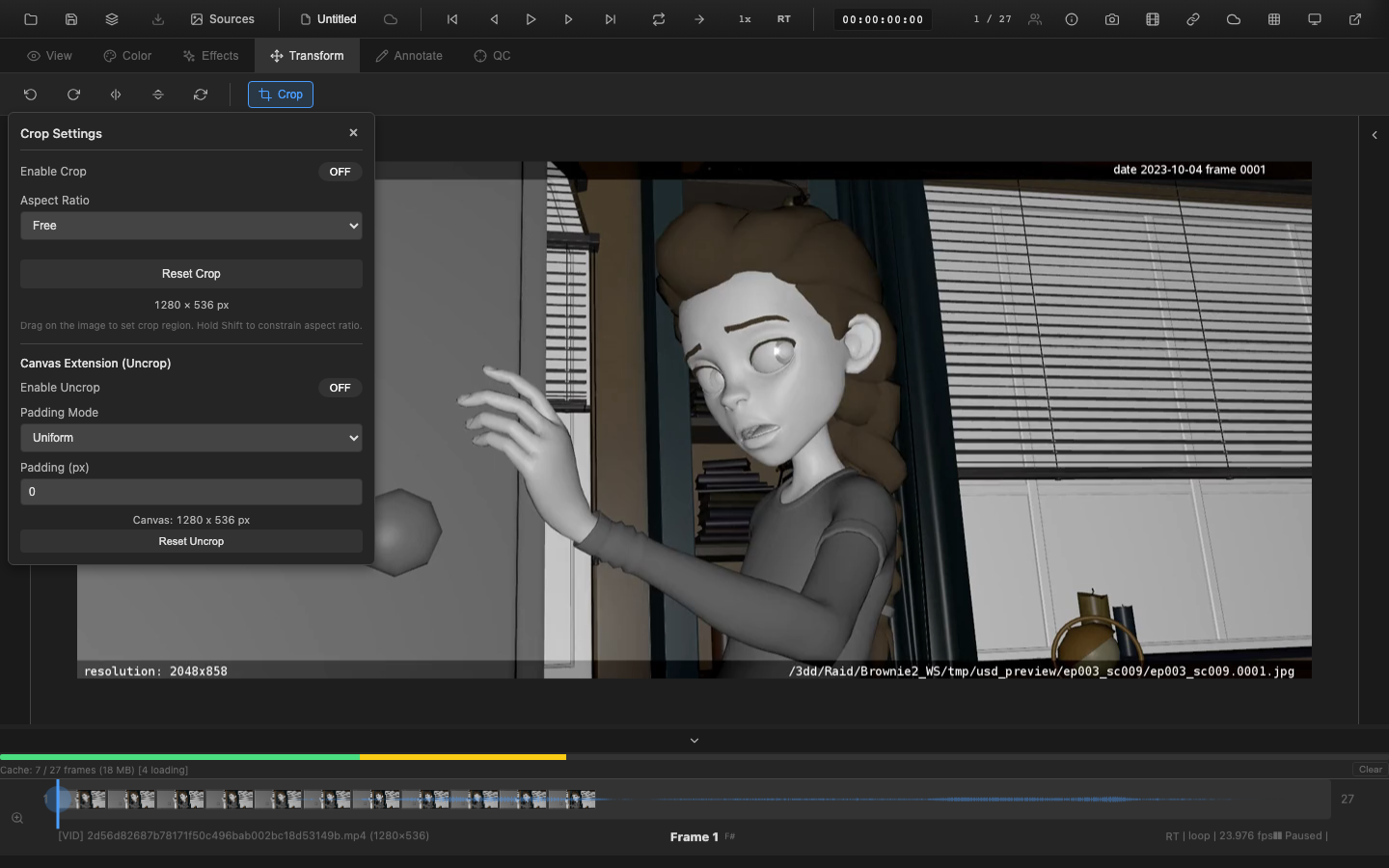
OpenRV Web provides spatial transform controls for rotating, flipping, cropping, and correcting geometric distortions in the viewed image. All transforms are non-destructive and operate in real time on the GPU. Transform settings are saved as part of the session state.
Rotation and Flip
Rotation
Rotate the image in 90-degree increments:
| Key | Action |
|---|---|
Shift+R | Rotate 90 degrees counter-clockwise |
Alt+R | Rotate 90 degrees clockwise |
After four rotations, the image returns to its original orientation.
Rotation is applied before all other transforms in the pipeline, so crop regions and lens distortion parameters orient relative to the rotated image.
Flip and Flop
- Flip (vertical mirror): Mirrors the image vertically around the horizontal axis
- Flop (horizontal mirror): Mirrors the image horizontally around the vertical axis
Flip and flop are available from the Transform menu or via keyboard shortcuts (Alt+H for horizontal flip, Shift+V for vertical flip). These operations are useful for reviewing plates that were scanned or rendered with an inverted coordinate system.
Crop
The crop tool restricts the visible area of the image to a specified rectangular region. Cropping is useful for focusing on a specific area of interest, checking safe areas, or previewing a different delivery format aspect ratio.
Aspect Presets
Quick-select buttons provide common delivery aspect ratios:
| Preset | Ratio | Use Case |
|---|---|---|
| 16:9 | 1.778:1 | HD broadcast, streaming |
| 2.39:1 | 2.39:1 | Anamorphic widescreen cinema |
| 1.85:1 | 1.85:1 | Flat widescreen cinema |
| 4:3 | 1.333:1 | Standard definition, IMAX |
| 1:1 | 1:1 | Square format |
| Custom | User-defined | Any ratio specified by width and height values |
Crop Guides
When crop is active, the cropped-out areas are dimmed (letterboxed/pillarboxed) rather than removed, allowing the full image to remain visible for context. The crop boundary is indicated by guide lines. The opacity of the dimmed region is adjustable.
Enabling Crop
Activate crop from the Transform menu or the context toolbar. Adjust the crop region by dragging the handles or entering precise values in the crop controls.
Uncrop
Uncrop reveals the full data window of an image that was delivered with a crop applied at the source level. This is common with EXR files where the display window is smaller than the data window.
When uncrop is enabled, the viewer expands to show the full data window, with the original display window boundary indicated by a guide overlay. This is useful for:
- Checking overscan content outside the delivery frame
- Verifying that CG renders extend beyond the crop boundary for edge blending
- Reviewing tracking markers or calibration targets placed outside the delivery area
Pixel Aspect Ratio (PAR)
Some media is stored with non-square pixels. Common examples include:
- Anamorphic film scans (2:1 PAR)
- SD broadcast content (0.9091 PAR for NTSC, 1.0926 PAR for PAL)
- DV/HDV footage with rectangular pixels
OpenRV Web detects PAR metadata from the source file when available and applies the appropriate horizontal stretch or squeeze to display the image at its intended aspect ratio. PAR correction can be overridden or disabled from the Transform controls.
Lens Distortion
The lens distortion filter simulates or corrects barrel and pincushion distortion caused by camera lenses. This is useful for:
- Previewing undistorted plates before distortion is applied in compositing
- Applying matching distortion to CG elements for visual verification
- Evaluating the degree of distortion in source footage
Parameters
- K1: Primary radial distortion coefficient. Positive values produce barrel distortion (edges pushed outward); negative values produce pincushion distortion (edges pulled inward).
- K2: Secondary radial distortion coefficient for finer control of the distortion curve at the image periphery.
- Center: The optical center of the distortion, expressed as a normalized coordinate (default: 0.5, 0.5 for image center). Offset centers are needed when the camera's optical axis does not align with the image center.
Lens distortion is computed per-fragment in the GPU shader. The K1/K2 model follows the standard Brown-Conrady radial distortion equations used by most VFX lens distortion tools.
Perspective Correction
Perspective correction applies a homography transform to correct for keystone distortion caused by non-perpendicular camera angles. This is primarily a review tool for evaluating whether architectural lines that should be vertical or horizontal are rendered correctly.
Four corner pins define the perspective mapping. Drag each corner to adjust the transform, or enter coordinates manually for precise control.
Related Pages
- Rendering Pipeline -- Pipeline stage ordering for transforms
- Filters and Effects -- Image processing filters
- Overlays and Guides -- Safe area and grid overlays
- Viewer Navigation -- Pan, zoom, rotate, and flip in the viewer
- Session Management -- Transform settings in session persistence