OCIO Integration
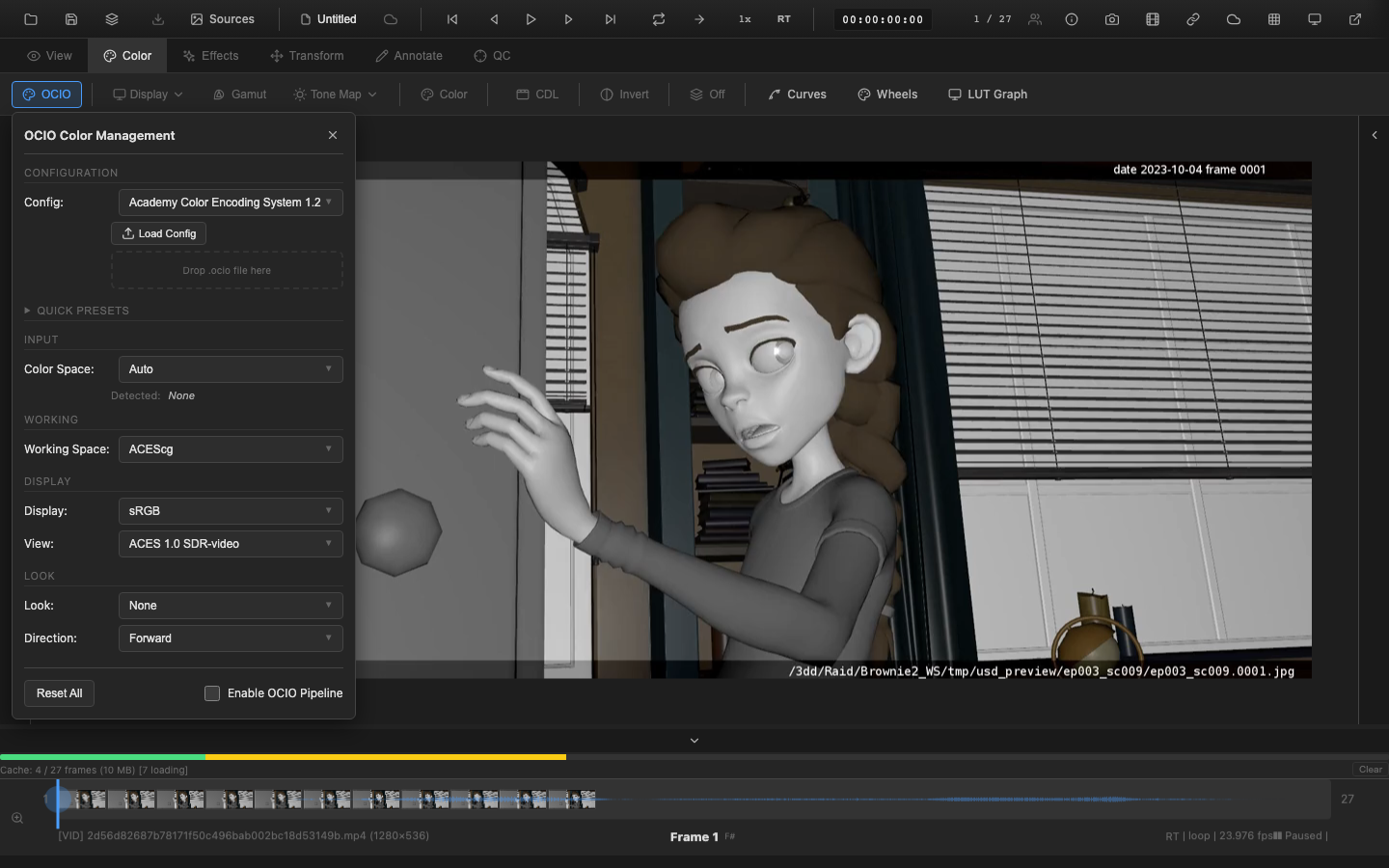
OpenColorIO (OCIO) is the industry-standard color management framework used across VFX, animation, and post-production. OpenRV Web provides OCIO-compatible color management with built-in configurations for common workflows, custom configuration loading, and GPU-accelerated processing.
Note: OCIO integration in OpenRV Web is a partial implementation. Built-in configurations provide the most common camera-to-display transforms. Full native OCIO library support via WASM is available for advanced workflows but may have performance implications compared to the native GPU pipeline.
Who uses this
Studios running ACES pipelines use OCIO to guarantee color consistency from camera through comp to final review. If your facility ships an OCIO config, OpenRV Web can load it directly -- so dailies review matches what artists see in Nuke, Resolve, and Houdini.
Opening the OCIO Panel
Press Shift+O to toggle the OCIO color management panel. The panel is also accessible from the Color tab context toolbar.
Built-in Configurations
OpenRV Web ships with two built-in OCIO configurations:
ACES 1.2
The Academy Color Encoding System configuration provides a comprehensive set of color spaces for film and VFX workflows:
- Input color spaces: ACES2065-1, ACEScg, ACEScct, ACEScc, Linear sRGB, sRGB, Rec.709, ARRI LogC3/C4, Sony S-Log3, RED Log3G10, DCI-P3, Rec.2020, Adobe RGB, ProPhoto RGB, Raw
- Working spaces: ACES2065-1, ACEScg, Linear sRGB, ProPhoto RGB
- Displays: sRGB, Rec.709, DCI-P3, Rec.2020
- Views: ACES 1.0 SDR-video, Raw, Log
- Looks: None, ACES 1.0, Filmic
sRGB
A simple configuration for standard web and photography workflows:
- Input color spaces: Linear sRGB, sRGB, Rec.709, Raw
- Working spaces: Linear sRGB
- Displays: sRGB, Rec.709
- Views: Standard, Raw
Configuring the Pipeline
The OCIO pipeline consists of five stages:
1. Input Color Space
Select the color space that matches the source media. Choose Auto to let OpenRV Web detect the color space from file metadata (EXR chromaticities, video color primaries). Available options depend on the active configuration.
2. Working Color Space
The internal color space where grading operations occur. For ACES workflows, ACEScg (linear, AP1 primaries) is the standard choice. For simpler pipelines, Linear sRGB is appropriate.
3. Display
Select the display device color space. Common choices:
- sRGB -- standard computer monitors
- Rec.709 -- HD broadcast reference monitors
- DCI-P3 -- digital cinema projectors and wide-gamut displays
- Rec.2020 -- UHD/HDR broadcast
4. View Transform
The view transform determines how scene-referred values are mapped to the display. ACES 1.0 SDR-video applies the standard ACES tone mapping curve. Raw passes values through without tone mapping. Log displays data in log space for exposure analysis.
5. Look Transform
An optional creative transform applied within the OCIO pipeline. Looks can add contrast, color shifts, or stylistic effects. Select None to bypass. The look direction (forward or inverse) can be toggled for diagnostic purposes.
Pipeline Note
OCIO is the backbone of color consistency across VFX departments. When lighting, compositing, and review all share the same OCIO config, an artist in Nuke sees the same colors as the lighter in Maya/Houdini and the supervisor in the review tool. Facility OCIO configs typically define studio-specific input transforms, display presets, and show looks that all applications reference from a shared network path.
VFX Use Case
For ACES-managed shows, set the working space to ACEScg (linear, AP1 primaries) -- this is the standard for CG rendering and compositing. Use the workflow presets to quickly configure the correct camera-to-display pipeline (e.g., "ARRI LogC3 to 709" for ALEXA dailies). If your facility has a custom OCIO config, load it via "Load Custom Config" to get the exact same color transforms used in Nuke, Resolve, and other tools on your show.
Workflow Presets
OpenRV Web provides one-click workflow presets that configure the entire OCIO pipeline for common camera-to-display combinations:
| Preset | Pipeline |
|---|---|
| ARRI LogC3 to 709 | LogC3 input, ACEScg working, Rec.709 display, ACES SDR view |
| ARRI LogC4 to 709 | LogC4 input, ACEScg working, Rec.709 display, ACES SDR view |
| S-Log3 to 709 | Sony S-Log3 input, ACEScg working, Rec.709 display, ACES SDR view |
| RED Log to 709 | Log3G10 input, ACEScg working, Rec.709 display, ACES SDR view |
| ACEScct to sRGB | ACEScct input, ACEScg working, sRGB display, ACES SDR view |
| Linear to sRGB | Linear sRGB input and working, sRGB display, Standard view |
| LogC3 to P3 | LogC3 input, ACEScg working, DCI-P3 display (wide gamut output) |
| LogC4 to 2020 | LogC4 input, ACEScg working, Rec.2020 display (HDR/wide gamut) |
Presets are grouped by category: Camera, ACES, Display, and HDR.
Custom Configuration Loading
To load a custom OCIO configuration:
- Open the OCIO panel (
Shift+O). - Click Load Custom Config.
- Select an OCIO configuration file.
- The configuration is parsed and its color spaces, displays, views, and looks become available in the pipeline dropdowns.
Custom configurations are registered alongside built-in configurations and persist for the current session.
WASM Processing
For complex OCIO transforms that cannot be expressed as simple matrix + transfer function combinations, OpenRV Web uses a WASM-compiled OCIO processor. This provides accurate results but processes on the CPU, which may introduce latency for high-resolution images. The native GPU pipeline handles the most common transforms (linearization, primaries conversion, display transfer) at full frame rate.
Scripting API
// Enable OCIO pipeline
window.openrv.color.setOCIOState({
  enabled: true,
  configName: 'aces_1.2',
  inputColorSpace: 'ARRI LogC3 (EI 800)',
  workingColorSpace: 'ACEScg',
  display: 'sRGB',
  view: 'ACES 1.0 SDR-video',
  look: 'None'
});

// Get current OCIO state
const state = window.openrv.color.getOCIOState();

// List available configurations
const configs = window.openrv.color.getAvailableConfigs();
Related Pages
- OCIO Technical Reference -- OCIO concepts, browser limitations, and implementation architecture
- Log Curve Presets -- camera log encoding presets (used as OCIO input spaces)
- Display Profiles -- display transfer functions and HDR output
- LUT Loading -- LUT interaction with the OCIO pipeline
- Rendering Pipeline -- OCIO position in the rendering pipeline