Color Wheels (Lift/Gamma/Gain)
The three-way color correction wheels provide an intuitive interface for adjusting color balance independently in the shadows, midtones, and highlights. This is the same grading paradigm used in professional color correction suites such as DaVinci Resolve, Baselight, and desktop OpenRV.
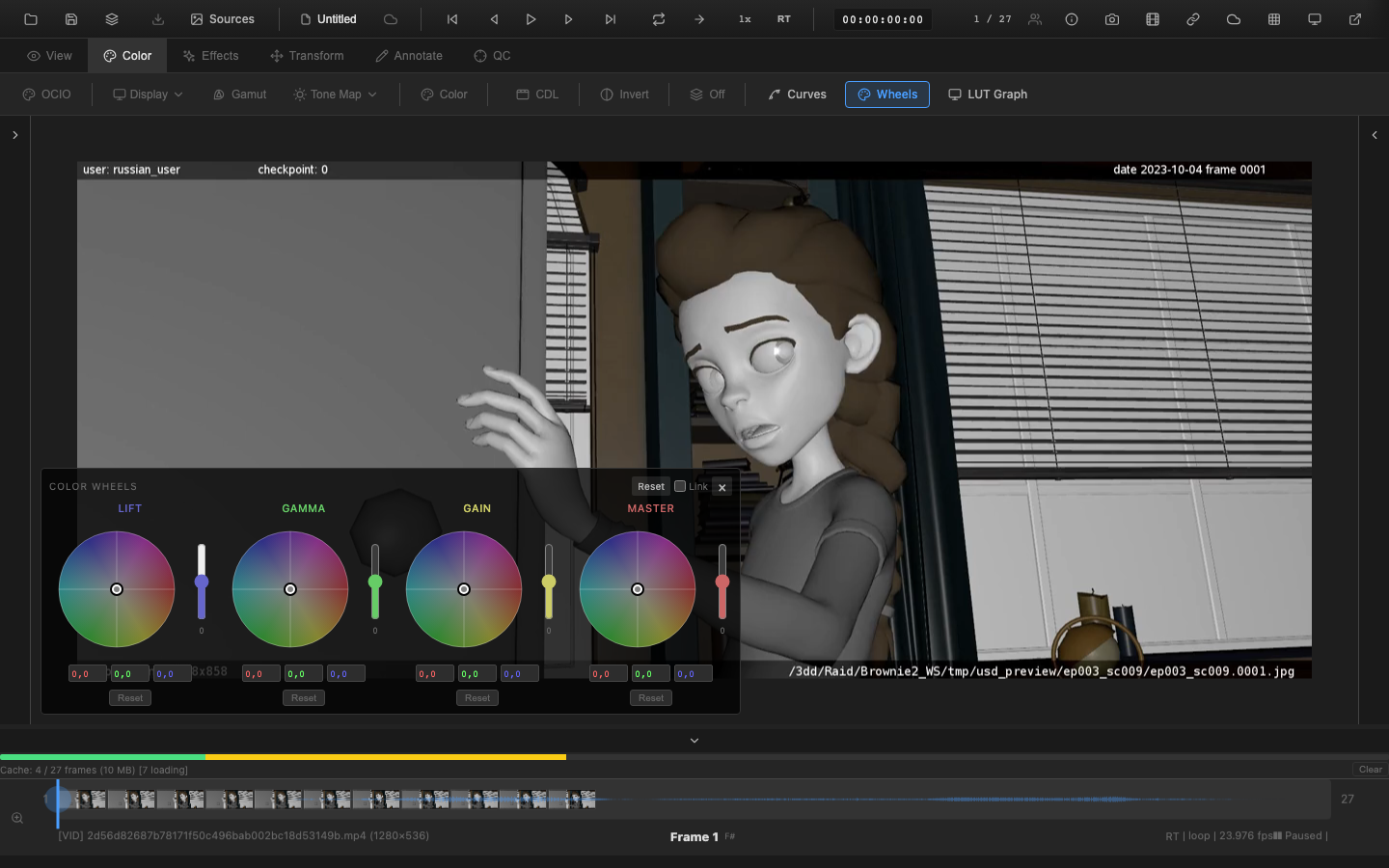
Concept
Three-way color correction divides the image into tonal zones based on luminance:
- Lift (Shadows): Affects the darkest portions of the image. The lift wheel adds a color offset to pixels weighted by their shadow content using a
smoothstep(0.5, 0.0, luminance)falloff. - Gamma (Midtones): Affects the mid-brightness region. The gamma wheel applies a power-function adjustment weighted to midtones, computed as
1.0 - shadowWeight - highlightWeight. - Gain (Highlights): Affects the brightest portions of the image. The gain wheel applies a multiplicative color scaling weighted by a
smoothstep(0.5, 1.0, luminance)highlight mask.
These three zones overlap smoothly, ensuring no hard transitions between tonal regions.
Opening the Color Wheels
Press Shift+Alt+W to toggle the color wheels panel. The panel can also be activated from the Color tab in the context toolbar.
Interactive Wheels
Each wheel displays a circular color picker. Dragging the center point toward a color shifts that tonal zone toward that hue:
- Drag toward red: Warm up the zone (shadows become reddish, midtones gain warmth, or highlights turn golden).
- Drag toward blue: Cool down the zone.
- Center position: Neutral (no color shift).
The distance from center controls the intensity of the shift. Larger offsets produce stronger color corrections.
Master Wheel
A fourth Master wheel applies the same type of offset across the entire tonal range. Use it for quick global color shifts without adjusting each zone independently.
Color Preview Ring
Each wheel is surrounded by a color preview ring that shows the current tonal distribution of the image within that zone. This provides immediate visual feedback on how the correction affects shadow, midtone, and highlight color balance.
Gang and Link Controls
- Gang: Lock the R, G, and B channels together so that adjusting one channel adjusts all three equally. This limits correction to luminance-only changes within each zone.
- Link: Synchronize all three wheels so that adjusting one wheel applies a proportional correction to the others. Useful for global color temperature shifts across all tonal zones simultaneously.
Pipeline Position
Color wheels are applied at stage 6a in the rendering pipeline, after primary adjustments (exposure, contrast, saturation, highlights/shadows) and before CDL, curves, and LUT grading. This placement allows primary corrections to establish the tonal foundation before zone-based color shaping.
The GPU shader computes luminance using Rec. 709 weights and applies each zone's correction in a single pass:
// Lift (additive in shadows)
color += liftColor * shadowWeight

// Gain (multiplicative in highlights)
color *= 1.0 + gainColor * highlightWeight

// Gamma (power in midtones)
color = pow(color, 1.0 / (1.0 + gammaColor)) * midWeight + color * (1.0 - midWeight)
Pipeline Note
Lift/gamma/gain is the digital equivalent of the film lab's printer lights system. In the film era, printer lights (red, green, blue values) controlled the color balance of a print. Modern DI workflows use the same three-way concept with continuous precision. OpenRV Web's color wheels match the paradigm used in DaVinci Resolve, Baselight, and desktop RV, so grades discussed during review sessions translate directly to the colorist's toolset.
VFX Use Case
During shot matching in dailies, use the gain wheel to match highlight color temperature between shots (warm vs. cool highlights), and the lift wheel to match shadow density and color. This is the fastest way to evaluate whether shots in a sequence will cut together before sending to the DI colorist for final grading.
Persistence and History (AppColorWiring)
Color wheel adjustments are wired through AppColorWiring, the centralized module that connects all color controls to the application's persistence and history systems. This means color wheel state is fully integrated with undo/redo, session save/load, and auto-save recovery.
Data Flow
 ColorWheels UI           AppColorWiring              Subsystems
 ──────────────          ────────────────            ────────────
      │                        │                          │
      │  stateChanged event    │                          │
      ├───────────────────────>│                          │
      │                        │── viewer.onColorWheelsChanged()
      │                        │── sessionBridge.scheduleUpdateScopes()
      │                        │── persistenceManager.syncGTOStore()
      │                        │                          │
      │                        │   (500ms debounce)       │
      │                        │── historyManager.recordAction()
      │                        │     ├─ undo: setState(prev) + onColorWheelsChanged()
      │                        │     └─ redo: setState(curr) + onColorWheelsChanged()
      │                        │                          │
How It Works
- Event source: The
ColorWheelscomponent emits astateChangedevent whenever the user drags a wheel or adjusts a value. - Immediate effects:
AppColorWiringlistens forstateChangedand immediately callsviewer.onColorWheelsChanged()to update the GPU shader, then triggers scope updates and GTO store sync for persistence. - Debounced history: A 500ms debounce timer batches rapid adjustments (e.g., dragging a wheel) into a single undo/redo entry. The timer captures the previous state snapshot before it fires, so undo restores the state from before the drag began.
- Session serialization: The
persistenceManager.syncGTOStore()call ensures the currentColorWheelsStateis written into the session state, which is then available for auto-save, manual save (.orvproject), and snapshot creation.
Serialized State Shape
Color wheel state is stored in SessionState.colorWheels as a ColorWheelsState object:
interface WheelValues {
  r: number;  // Red channel offset
  g: number;  // Green channel offset
  b: number;  // Blue channel offset
  y: number;  // Luminance (master brightness) offset
}

interface ColorWheelsState {
  lift: WheelValues;    // Shadow zone
  gamma: WheelValues;   // Midtone zone
  gain: WheelValues;    // Highlight zone
  master: WheelValues;  // Full-range zone
  linked: boolean;      // Whether wheels are linked together
}
Default values are all zeros with linked: false, meaning no color correction is applied.
Undo/Redo Behavior
Each undo/redo entry stores a deep copy of the full ColorWheelsState. On undo or redo, the wiring calls viewer.getColorWheels().setState(snapshot) followed by viewer.onColorWheelsChanged() and a scope update. This restores the exact wheel positions and re-renders the image in a single step.
Source Files
| File | Role |
|---|---|
src/AppColorWiring.ts | Wiring logic: event subscriptions, debounced history, persistence triggers |
src/ui/components/ColorWheels.ts | UI component: wheel rendering, drag interaction, stateChanged event emitter |
src/core/types/color.ts | Type definitions: ColorWheelsState, WheelValues, defaults |
src/core/session/SessionState.ts | Session schema: colorWheels?: ColorWheelsState field |
Typical Workflows
- Warm highlights, cool shadows: Push the gain wheel toward orange/yellow and the lift wheel toward blue for a classic cinematic look.
- Neutralize a color cast: If shadows appear green, push the lift wheel toward magenta to compensate.
- Add depth: Slightly warm the midtones and cool the shadows to create visual separation between foreground and background elements.
Related Pages
- Primary Color Controls -- exposure, contrast, saturation, and other primary adjustments
- CDL Workflow -- ASC CDL slope/offset/power per-channel correction
- Rendering Pipeline -- full shader pipeline stage ordering