Display Profiles and Color Output
Display profiles control the final stage of the color pipeline -- converting graded, tone-mapped linear light values into the signal encoding expected by the physical display device. OpenRV Web provides transfer function selection, display gamma and brightness overrides, HDR output modes, gamut mapping, and automatic display capabilities detection.
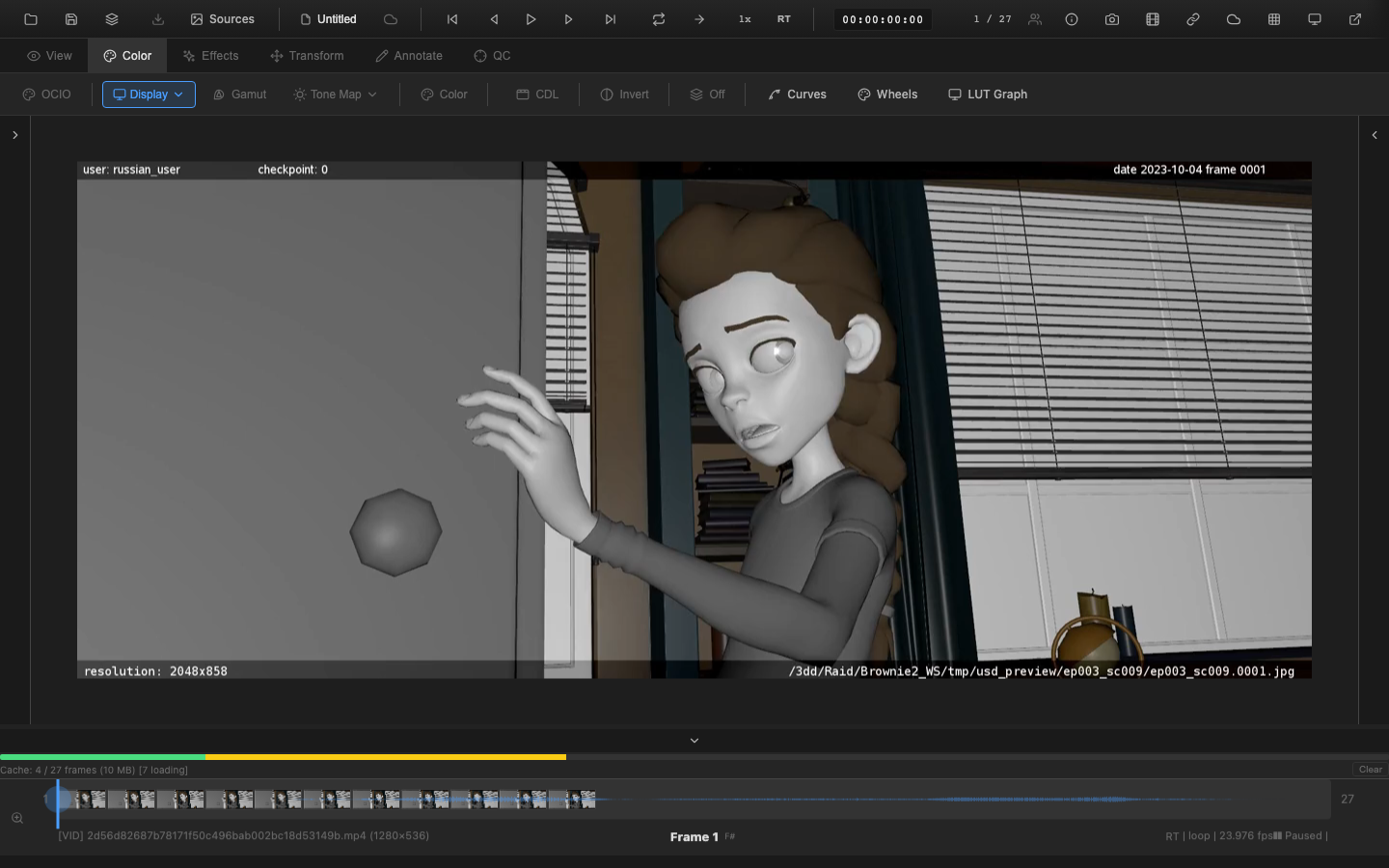
Transfer Functions
The display transfer function converts linear light values to the non-linear encoding that displays expect. Select the transfer function that matches the monitor's calibration:
| Transfer Function | Label | Description |
|---|---|---|
| Linear (Bypass) | Linear | No encoding applied. Use for HDR displays or when viewing raw linear data. |
| sRGB (IEC 61966-2-1) | sRGB | The standard encoding for computer monitors. Includes a linear segment near black and a power curve (~2.2 effective gamma). Default setting. |
| Rec. 709 OETF | 709 | The HD broadcast standard transfer function. Similar to sRGB but with a different linear segment threshold and a 0.45 power. |
| Gamma 2.2 | 2.2 | Pure power function with exponent 2.2. Simpler than sRGB, commonly used in game engines. |
| Gamma 2.4 | 2.4 | Pure power function with exponent 2.4. Standard for dim-surround viewing environments (cinema, grading suites). |
| Custom Gamma | Custom | User-specified gamma value from 0.1 to 10.0. |
Cycling Profiles
Press Shift+Alt+D to cycle through the available display profiles: Linear, sRGB, Rec. 709, Gamma 2.2, Gamma 2.4. The active profile name appears in the viewer status area via the Display Profile Indicator, a semi-transparent overlay positioned in the bottom-left corner of the viewer. When cycling profiles, the indicator flashes briefly (becomes fully opaque for 1.5 seconds) to confirm the change, then fades back to its normal opacity. The indicator can be toggled on or off programmatically and is non-interactive (pointer events pass through to the viewer).
Display Gamma Override
| Property | Value |
|---|---|
| Range | 0.1 to 4.0 |
| Default | 1.0 |
The display gamma override applies an additional power function on top of the selected transfer function. This compensates for monitor-specific gamma response that deviates from the nominal curve. At 1.0, no additional compensation is applied.
The override is applied at pipeline stage 8c, after the transfer function encoding and before the brightness multiplier. The formula is:
output = pow(transferEncoded, 1.0 / displayGamma)Display Brightness
| Property | Value |
|---|---|
| Range | 0.0 to 2.0 |
| Default | 1.0 |
Display brightness applies a final multiplicative scaling to all channels. This adjusts the overall output level without affecting the transfer function shape. Use it to match the brightness of the viewer to the physical monitor's peak luminance or to compensate for ambient lighting conditions.
Applied at pipeline stage 8d, this is the last adjustment before color inversion and channel isolation.
HDR Output
OpenRV Web detects and supports HDR display capabilities when available. HDR output preserves values above 1.0 (SDR reference white) through the entire pipeline, allowing super-white highlights to reach the display at their intended luminance.
HDR Modes
| Mode | Description |
|---|---|
| SDR | Standard dynamic range. Values are clamped to 0.0-1.0. Default for non-HDR displays. |
| HLG | Hybrid Log-Gamma output via rec2100-hlg WebGL drawing buffer color space. |
| PQ | Perceptual Quantizer (ST 2084) output via rec2100-pq WebGL drawing buffer color space. |
| Extended | Extended-range SDR via drawingBufferStorage() with float16 backbuffer and configureHighDynamicRange(). |
The active HDR mode is determined automatically based on browser and display capabilities. HDR headroom (the ratio of display peak luminance to SDR reference white) is propagated through the shader as the u_hdrHeadroom uniform.
Supported Display Gamuts
| Gamut | CSS Media Query | Description |
|---|---|---|
| sRGB | (color-gamut: srgb) | Standard gamut. Covers approximately 35% of visible colors. |
| Display-P3 | (color-gamut: p3) | Wide gamut used by modern Apple displays, cinema projectors. ~25% wider than sRGB. |
| Rec. 2020 | (color-gamut: rec2020) | Ultra-wide gamut for HDR broadcast. Covers ~75% of visible colors. |
When the display supports P3 or Rec. 2020, and WebGL2 supports the corresponding drawingBufferColorSpace, OpenRV Web automatically activates the wider gamut for more accurate color reproduction.
Display Capabilities Detection
At startup, OpenRV Web probes the browser environment to determine available capabilities:
| Capability | Detection Method |
|---|---|
| Display gamut | matchMedia('(color-gamut: p3)') and (color-gamut: rec2020) |
| Display HDR | matchMedia('(dynamic-range: high)') |
| WebGL P3 output | drawingBufferColorSpace = 'display-p3' test |
| WebGL HLG/PQ output | drawingBufferColorSpace = 'rec2100-hlg' / 'rec2100-pq' test |
| WebGPU availability | 'gpu' in navigator |
| Float16 canvas | OffscreenCanvas with colorType: 'float16' test |
| VideoFrame upload | typeof VideoFrame !== 'undefined' |
All detection results are cached in a DisplayCapabilities object. No throwaway canvases or contexts persist after probing -- they are cleaned up immediately.
The active color space (sRGB or Display-P3) is resolved from the combination of user preference and detected capabilities. A preference of auto selects P3 when both the display and WebGL support it.
Canvas2D HDR Fallback
When WebGL2 native HDR output and WebGPU are both unavailable, OpenRV Web falls back to the Canvas 2D API for HDR display. This path uses the srgb-linear, rec2100-hlg, or float16 color space configurations on CanvasRenderingContext2D. The fallback preserves extended-range luminance values so that HDR content remains viewable on browsers that support Canvas2D HDR extensions but lack WebGL2 HDR drawing buffer support.
Pipeline Note
Choosing the correct display profile is essential for accurate delivery review. Use Rec.709 when reviewing broadcast/episodic deliverables on a calibrated reference monitor. Use sRGB for web and streaming delivery. Use Gamma 2.4 for DI suite and grading theater environments (dim surround). For theatrical DCPs, the target is DCI-P3. Mismatched display profiles are the most common cause of "it looked different on my monitor" issues across departments.
VFX Use Case
When reviewing on a wide-gamut display (P3 or Rec.2020), enable the highlight out-of-gamut diagnostic mode to identify colors that will be clipped when the deliverable is mastered to a narrower gamut like Rec.709. This catches issues before the final conform where out-of-gamut colors would shift unpredictably.
ICC Profile Support
OpenRV Web can parse ICC v2/v4 display profiles with matrix/TRC (tone response curve) models. When an ICC profile is loaded, the parser extracts per-channel tone response curves and the chromatic adaptation matrix to convert from the profile's device color space to the CIEXYZ Profile Connection Space (PCS). This enables accurate color reproduction when the monitor's ICC profile is known. ICC profiles use the standard tags (rTRC, gTRC, bTRC, rXYZ, gXYZ, bXYZ) defined by ICC.1:2022.
Gamut Mapping
When source content has a wider gamut than the display (for example, Rec. 2020 source on an sRGB monitor), gamut mapping brings out-of-gamut colors into the displayable range. Two modes are available:
- Clip: Simply clamps out-of-gamut values to the target gamut boundary. Fast but can produce hue shifts.
- Compress: Applies a perceptual compression that preserves hue relationships at the cost of some saturation reduction.
Gamut mapping is applied at pipeline stage 7a, after tone mapping and before the display LUT. An optional highlight out-of-gamut mode overlays a diagnostic color on pixels that exceed the target gamut, helping identify problematic areas.
Supported Color Primaries
OpenRV Web converts between three RGB working spaces, all sharing the D65 white point. Because all three share D65, the conversion is a direct 3x3 primary matrix with no chromatic adaptation transform involved.
| Primary set | Reference | Use |
|---|---|---|
| BT.709 / sRGB | ITU-R BT.709-6 Item 1.4 | HD/web standard, default working space |
| Display-P3 | SMPTE EG 432-1 (DCI-P3 primaries with D65 white) | Modern Apple / wide-gamut displays |
| BT.2020 / Rec. 2020 | ITU-R BT.2020-2 Table 4 | UHD/HDR broadcast |
Available conversions used by the gamut mapping stage:
- BT.2020 → BT.709/sRGB (narrowing — colors may go out of gamut)
- BT.2020 → Display-P3 (narrowing)
- Display-P3 → BT.709/sRGB (narrowing)
- BT.709/sRGB → Display-P3 (widening — output stays in gamut)
- BT.709/sRGB → BT.2020 (widening)
The same numerical matrices are mirrored across the WebGL2 shader, the WebGPU shader, and the CPU reference path so that all three render backends produce identical pixel values for a given input. The canonical source-of-truth values live in src/render/ShaderConstants.ts (COLOR_PRIMARIES_MATRICES); their derivation, references, and storage layout are documented in features/color-space-matrices.md.
For OCIO-based workflows that involve white-point changes (for example, ACES AP0/AP1 spaces with a D60-ish white) or camera-native log spaces, see OCIO Integration — those transforms include the appropriate chromatic adaptation step.
Scripting API
// Set display profile
window.openrv.color.setDisplayProfile({
  transferFunction: 'rec709',
  displayGamma: 1.0,
  displayBrightness: 1.0
});

// Get current display profile
const profile = window.openrv.color.getDisplayProfile();

// Query display capabilities
const caps = window.openrv.color.getDisplayCapabilities();
console.log(caps.displayGamut);    // 'srgb' | 'p3' | 'rec2020'
console.log(caps.displayHDR);      // true | false
console.log(caps.activeHDRMode);   // 'sdr' | 'hlg' | 'pq' | 'extended'
Related Pages
- Tone Mapping -- HDR tone mapping operators applied before display output
- Log Curve Presets -- input linearization (the other end of the pipeline)
- OCIO Integration -- OCIO display and view transforms
- LUT Loading -- display LUT slot for monitor calibration
- Rendering Pipeline -- display output stages 8a-8d in the pipeline